Prompt generation is useful when you want a new material idea. But sometimes the best starting point is already in front of you: a material photo, a scan, a pattern sample, a render, or an AI image that has the right character but does not repeat cleanly.
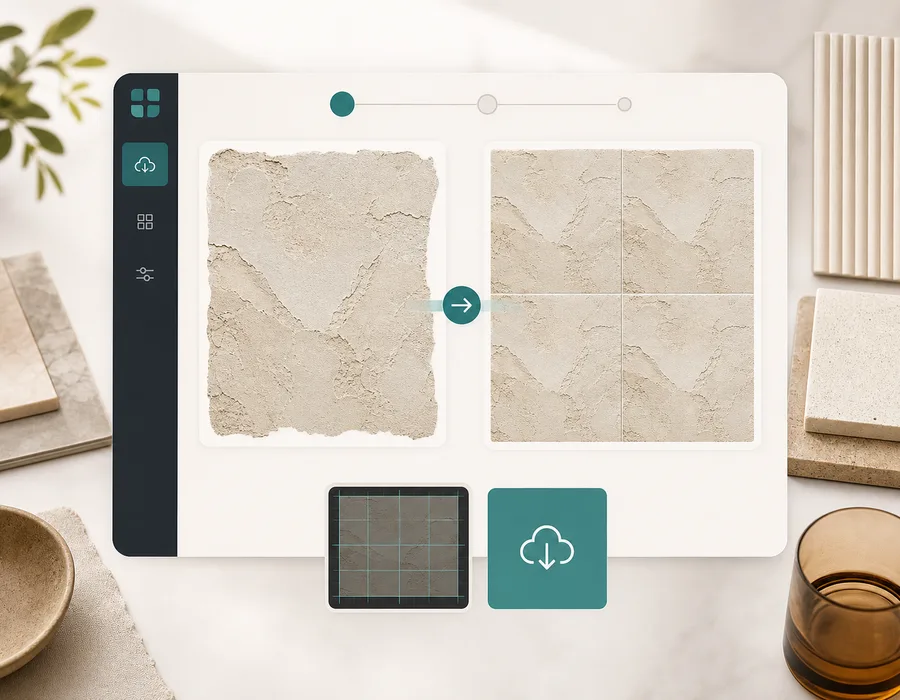
That is where an image-to-seamless workflow helps. Instead of inventing a new texture from text, you keep the source image and repair it so the opposite edges can tile more smoothly.
When to use image-to-seamless conversion
Use an image converter when you want to preserve an existing look.
Good candidates include:
- Concrete, plaster, paper, soil, sand, and stone surfaces.
- Fabric, weave, leather, canvas, and textile references.
- Marble, terrazzo, bark, wood grain, and organic material detail.
- Decorative pattern references.
- AI renders that look good but have visible edges.
For source-specific planning, compare the concrete texture generator, wallpaper pattern generator, fabric texture generator, and product mockup texture workflow before deciding whether to upload or regenerate.
Poor candidates include:
- Photos with a single object in the center.
- Images with text, logos, faces, or readable symbols.
- Strong shadows, reflections, or directional light.
- Perspective photos of rooms, objects, or angled surfaces.
- Tiny screenshots with compression artifacts.
The source should behave like a surface, not like a scene.
The core problem: opposite edges do not match
A tile repeats because the left edge meets the right edge and the top edge meets the bottom edge. If those edges are different, the repeat creates a visible line.
Common edge problems:
| Edge issue | What it looks like when tiled |
|---|---|
| Lighting gradient | Repeated square blocks |
| Color mismatch | Vertical or horizontal bands |
| Broken object | Cut-off cracks, fibers, or motifs |
| Hard border | A frame around every tile |
| Strong shadow | Repeating dark patches |
The goal is not to make the image perfect. The goal is to make the repeat believable enough for the next stage of your workflow.
A practical conversion workflow
1. Prepare the source
Choose an image with repeated detail across the full frame. Crop out obvious objects, borders, labels, and empty space before conversion when possible.
For best results, start with:
- Even lighting.
- A surface-like subject.
- Enough texture detail.
- Minimal perspective.
- No important element touching the edge.
2. Upload and repair
Open the Seamless Texture Generator and upload the image. The converter focuses on texture cleanup instead of general image editing. It reduces edge mismatch, balances broad tonal shifts, repairs internal seams, and prepares a repeatable PNG.
This is especially useful for scanned material samples and quick photo references.
3. Compare the repeat
Do not judge only the single tile. Start with the default 3×3 repeat preview, then use 2×2 or 5×5 when helpful.
The center cross is where the original image edges meet. If the cross is obvious, the repeat still needs work. If the texture reads as one continuous surface, it is ready to test.
4. Download and test in context
Export the PNG and place it where it will actually be used. A texture that looks good in a web preview can feel too large, too noisy, or too repetitive in a 3D scene. Context matters.
Test the output in:
- Blender materials.
- Unity or Unreal prototypes.
- Wallpaper and print mockups.
- Packaging scenes.
- CSS background tests.
- Fabric or surface pattern boards.
How to choose better source images
The best image-to-seamless results usually come from boring-looking sources. That is good. A flat, evenly lit patch of stone may look less exciting than a dramatic photo, but it tiles better.
Use this quick checklist:
| Question | Good sign |
|---|---|
| Is it mostly flat? | The surface is viewed straight on |
| Is the light even? | No strong shadow or glare |
| Is detail spread across the image? | No single dominant object |
| Are the edges clean? | No frame, text, or cut-off subject |
| Would it still make sense repeated? | The image behaves like material |
Image conversion vs prompt generation
Use image conversion when the source already has the right character. Use prompt generation when you need new directions.
For example, if you have a fabric scan with a weave you like, convert the image. If you only know you want "heavy black linen with subtle gray fibers," generate from a prompt.
Many production workflows use both:
- Generate a material direction from a prompt.
- Download the best result.
- Reprocess or refine it as an uploaded texture.
- Test the repeat in context.
Try the workflow
Upload a surface-like image to the Seamless Texture Generator. Check the result as a default 3×3 repeat, compare the seam quality, then download the tileable PNG for your material test. If the tile is going into a 3D scene, use the Blender texture workflow to test scale and mapping.