
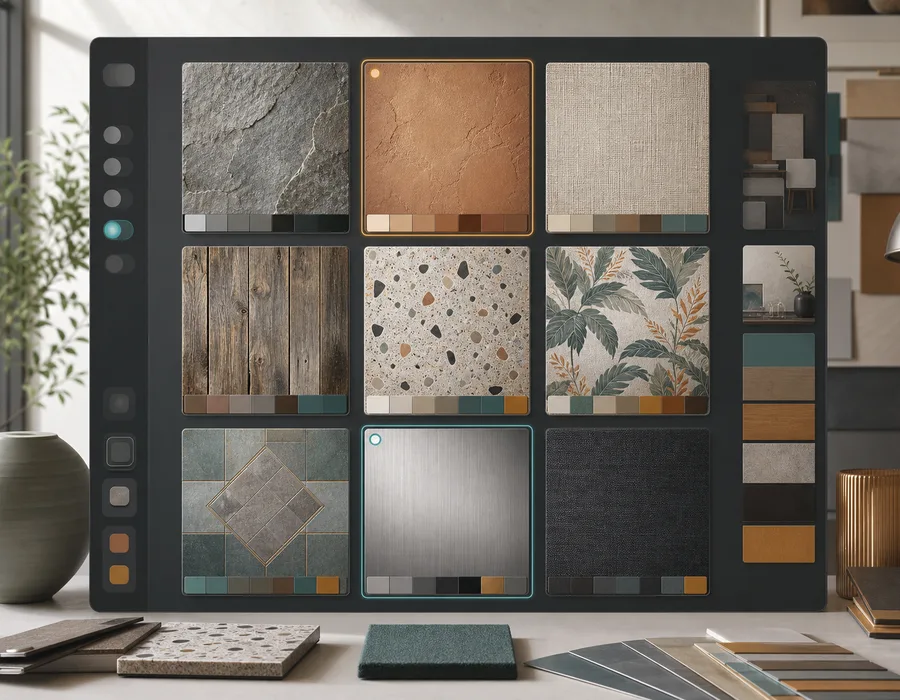
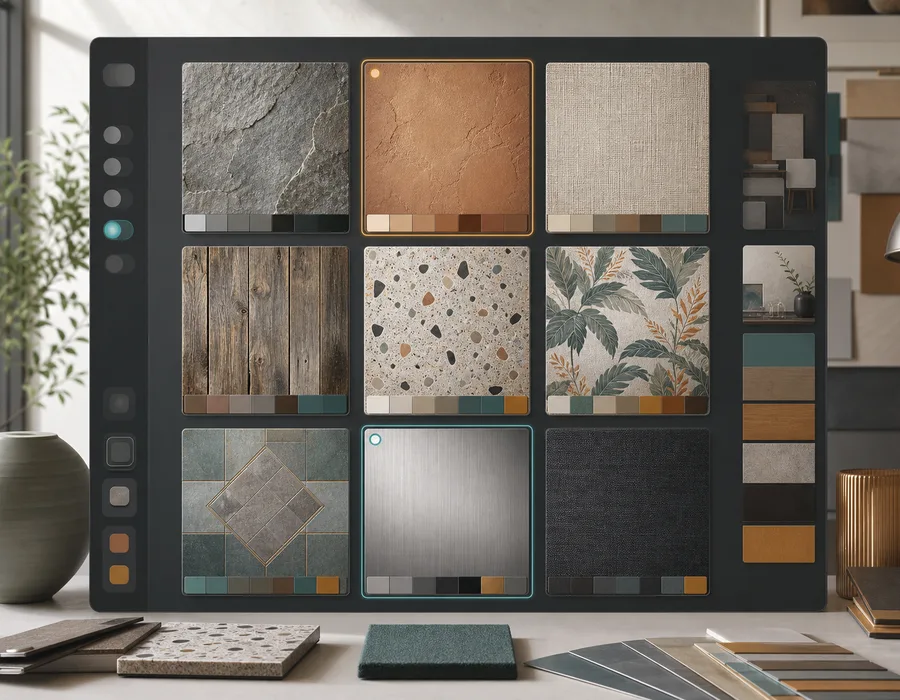
Seamless textures are useful in Blender because they let one square image cover a larger surface. A single tileable PNG can become a floor, wall, tabletop, cloth panel, terrain patch, or background material as long as the repeat stays clean.
The workflow is straightforward: choose or generate a texture, check that it repeats, import it into Blender, adjust scale, then decide whether it works in the actual scene.
Prepare the texture before Blender
Before you create the material, inspect the image as a repeat. This saves time because Blender will reveal seams immediately on large surfaces.
Check for:
- Hard vertical or horizontal lines.
- Directional lighting that creates square blocks.
- A detail that repeats too obviously.
- Perspective that makes the surface feel tilted.
- A border or shadow at the edge of the image.
Use the Seamless Texture Generator for prompt-based material ideas, or use its texture converter when you already have a source image.
If you are starting from scratch, the Blender textures workflow collects prompt angles for material slot tests, while the concrete texture generator and wood texture generator are useful starting points for wall, floor, and prop surfaces.
Pick the right resolution
Resolution depends on how close the camera gets.
| Use | Practical starting point |
|---|---|
| Quick material test | 512px |
| Medium-distance wall or floor | 1024px |
| Close-up material study | 2048px |
Higher resolution does not fix bad repetition. A clean 1024px seamless texture usually works better than a 2048px texture with a visible seam.
Create a basic material
In Blender, create a new material and add the image as a texture.
Basic setup:
- Select the object.
- Create a new material.
- Add an Image Texture node.
- Load the seamless PNG.
- Connect Color to Base Color on the Principled BSDF.
For a simple visual test, this is enough. You can add roughness, normal, bump, or displacement maps later if the asset needs more depth.
Adjust the scale
If a border becomes visible as you increase the repeat, repair the existing texture and compare its default 3×3 preview before reimporting it. Switch to 2×2 or 5×5 to change the inspection scale. Start with Auto to preserve detail; compare Full blend if the join remains visible. The texture and pattern repair tests show the detail loss to watch for. Repairing image edges will not fix a UV seam or inconsistent lighting in the Blender material.
Texture scale is where many materials fail. A technically seamless texture can still look wrong if the detail is too large or too small.
Ask:
- Would this stone size make sense on the floor?
- Is the fabric weave too large for the object?
- Does the wood grain feel like a plank, veneer, or tiny noise?
- Is the wallpaper motif sized correctly for a wall?
Use Blender mapping controls or UV scale to adjust the repeat density. The goal is not only "no seam." The goal is believable material scale.
Test on simple geometry first
Before applying the texture to a finished model, test it on a simple plane or cube.
This helps you judge:
- Repeat visibility.
- Material scale.
- Color balance.
- Whether the texture needs more or less contrast.
- Whether the asset needs supporting maps.
If the repeat is obvious on a flat plane, it will probably be obvious in the scene.
Build the material in layers
A color texture is a good start, but many Blender materials need more information.
Depending on the material, you may later add:
- Roughness variation for matte or glossy behavior.
- Bump or normal detail for surface depth.
- Displacement for close-up geometry.
- Color correction to match the scene.
- Procedural noise to break up large repeated areas.
Think of the seamless texture as the base surface character. Blender's shader controls finish the material.
For broader look development, compare the 3D materials workflow with material-specific pages such as marble textures, fabric textures, and stone textures. This helps you choose whether the prompt should prioritize shader realism, textile scale, or hard-surface wear.
Common Blender texture problems
| Problem | Likely cause | Fix |
|---|---|---|
| Surface looks like repeated squares | Lighting mismatch in texture | Use flatter lighting or repair the image |
| Texture feels fake | Scale is wrong | Adjust mapping or UV size |
| Pattern is too obvious | One detail repeats | Regenerate with more evenly distributed detail |
| Material looks flat | Only base color is used | Add roughness, bump, or normal detail |
| Edges show in render | Texture is not actually seamless | Check the 3×3 repeat and repair |
A clean Blender workflow
- Generate or convert a seamless texture.
- Inspect it as a 3×3 repeat.
- Export a PNG at the right test resolution.
- Apply it to a basic Blender material.
- Adjust scale in context.
- Add supporting shader detail only after the repeat works.
This keeps the workflow focused. You avoid spending time on shader polish before the base texture is usable.
Generate a Blender-ready texture
Create a tileable PNG in the Seamless Texture Generator, then test it in Blender on a simple plane. If you already have a material photo or AI render, clean it first with the texture converter.