
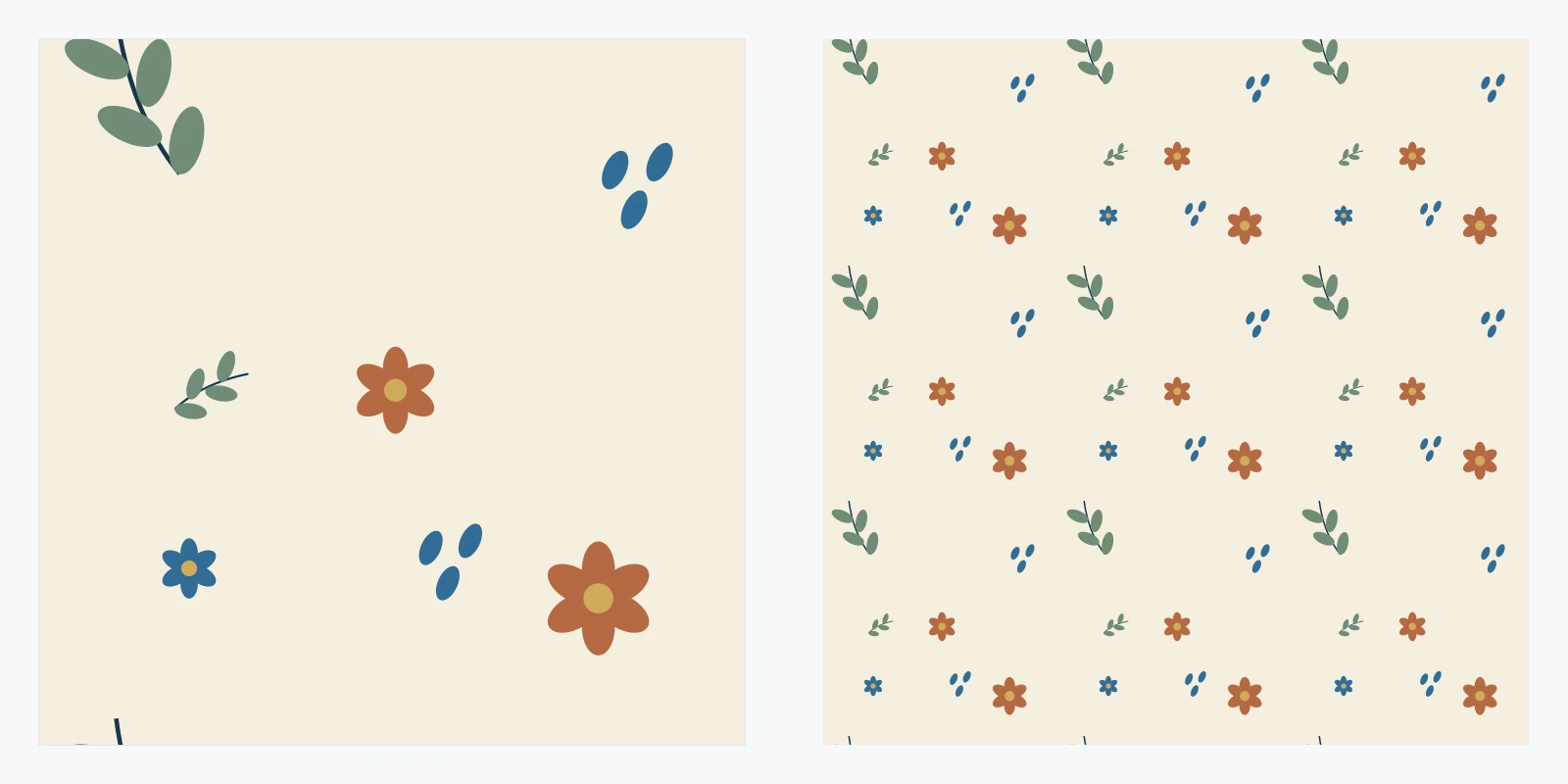
To make a repeating square tile in Clip Studio Paint, select the full canvas, convert a working copy of your artwork to an image material layer, and enable Tiling with the Object tool. Move the repeated image to expose its gaps, add the missing artwork, then check the exported tile in a larger repeat.
The workflow below follows CELSYS's documented material-layer controls in CSP PRO or EX using Studio Mode. Convert layer is unavailable in DEBUT. The illustrations are original teaching diagrams, not screenshots of the CSP interface.
Prepare one square tile and keep an editable source
Use a 1200 × 1200 px canvas for the practice example. Pixel dimensions determine how much detail you have; the print size and resolution can be decided from the destination's requirements.
You can download the 1200 × 1200 practice artwork to follow the material-layer and export checks. It is a flattened PNG, so its motifs will not become separate editable layers when imported. For the complete drawing exercise, sketch a few simple motifs on separate layers in your own document.

Start with three visibly different elements, such as a leaf, a rounded flower, and a small dot. Leave the initial artwork inside the canvas. A few open areas will make it easier to understand what changes when the tile moves.
Save a .clip project before combining any layers. Keep the original motifs in a clearly named folder, and work on a duplicate. An exported PNG is your delivery tile; the .clip file retains the layers you will need to change a flower, recolor a leaf, or make another colorway.
For a solid-background pattern, include that background in the working copy. For a transparent pattern, hide the Paper layer and any painted background before creating the material. Check the checkerboard rather than assuming a white-looking canvas is transparent.
Convert the full canvas to an image material layer
Select the working artwork layers in the Layer palette. Choose Selection > Select All, then Layer > Convert layer.
Choose Image material layer as the type and enable Keep original layer. Name the result something recognizable, such as Pattern working tile. Hide the preserved source layers after conversion so they do not appear behind your moving pattern.
Selecting the whole canvas matters when the artwork has transparent margins. The repeat unit should include the intended square and its spacing. A tight selection around one flower produces a different repeat interval from the full 1200 px canvas.
If you imported the practice PNG through File > Import > Image, it may already be an image material layer. Confirm its type in the Layer palette instead of converting it repeatedly.
Enable the correct tiling controls
Choose the Operation tool and its Object sub tool, then select the new image material layer.
In Tool Property, enable Tiling. Use Repeat for the repetition method and Vertical and horizontal for the direction. Reverse and Flip produce mirrored arrangements, which can be useful effects but change the relationship between neighboring copies.
At its original size, the layer can look unchanged because one repeat unit fills the canvas. Drag it with the Object tool to see the repeated copies continue across the canvas.
Keep its scale and angle unchanged during this first pass. Shrinking the layer can make more copies visible, but exporting that smaller repeat inside the original canvas may produce a different delivery tile than you intended.
Move the gaps inward and repair the composition
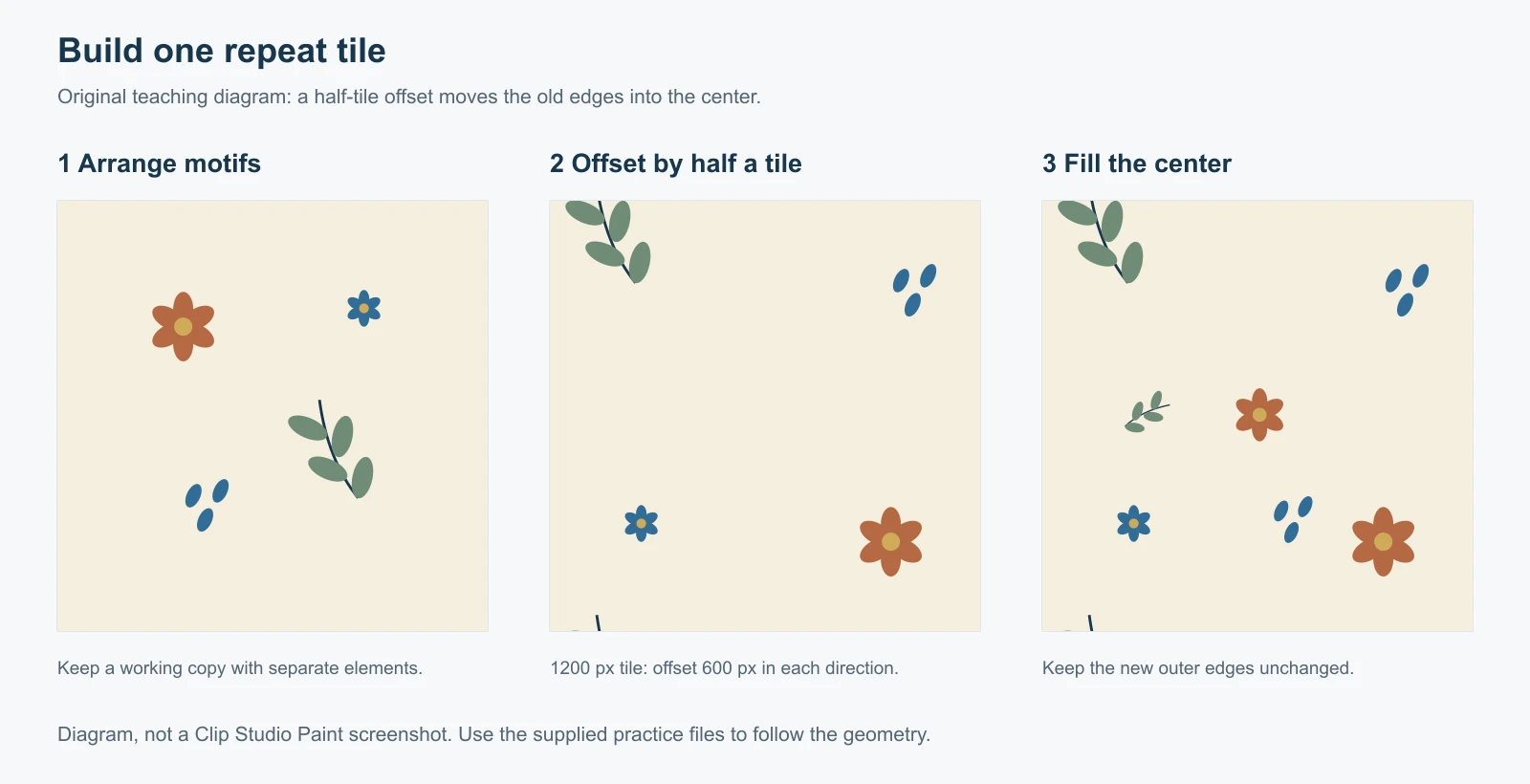
Move the tiled image until the original outer borders pass through the middle of the canvas. For a 1200 px square, a half-tile movement is 600 px in each direction; use that as a visual reference rather than resizing the image.
The material layer repeats its contents as it moves. A flower leaving one side should appear again on the other side. Use the Object tool on the material layer so you are moving the repeat, rather than cutting and rearranging individual raster fragments.
Add a new raster layer above the tiled material. Draw or paste small elements into the newly visible gaps. Work mainly in the interior and leave the current outside borders alone for this pass.
Look at more than whether the edges connect. A large flower in every corner can become a strong grid when repeated, while an empty channel can look like a stripe. Vary spacing enough to avoid those landmarks, but keep the size and drawing style consistent with the original motifs.
If you need to paint directly on the material contents, keep a backup before using Layer > Rasterize. Rasterizing gives you paintable pixels, so repeat checks need to be rebuilt after that edit.
Rebuild the repeat after adding new elements
The new raster layer does not automatically become part of the tiled material underneath it.
Select the material layer and your added artwork together. Choose Selection > Select All, then convert this working result to an image material layer again. Keep the previous layers as a backup and hide them.
Select the new result with the Object tool and enable Tiling again. Move the repeat to expose another join. If a new gap appears, add the next correction on a separate layer and repeat the conversion.
Two focused checks are useful. First inspect where the original borders moved into the middle. Then move those repaired areas away from the middle and look at a different set of joins. A clean-looking center alone does not prove that the entire tile works.
Save a material and export the actual tile
Once the arrangement holds together, save the .clip project again.
To reuse the tile inside CSP, select the finished layer and the full canvas, then choose Edit > Register Material > Image. Give it a useful name and save location. In Material Properties, enable Tiling under Paste operation and select the required repetition method and direction.
Registration saves a reusable material. To share an ordinary image file, use File > Export (Single Layer) > PNG, or the equivalent Export entry in your version.
For this exercise, keep the output at 100%, or explicitly set 1200 × 1200 px. Export the original tile canvas. A separate enlarged preview containing many copies is useful for inspection, but it is not the same file as one tile.
For transparency, hide Paper and any opaque background, then enable PNG transparency in the export settings. Keep the .clip file alongside the exported PNG; exporting a flat image cannot preserve editable motif layers.
Check the exported PNG in a fresh repeat
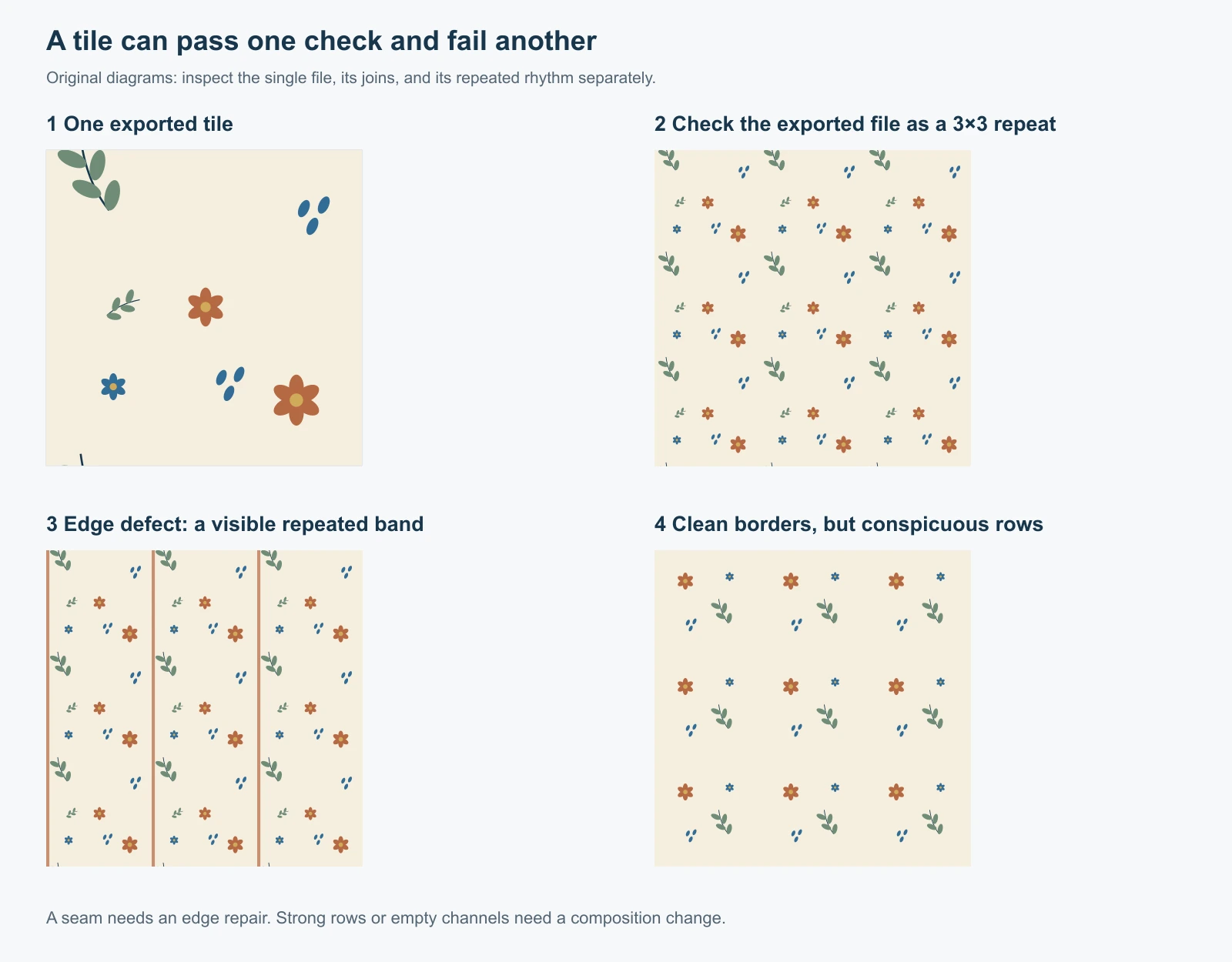
The diagram separates an edge defect from an obvious arrangement. They need different fixes.
Open the actual PNG in the Seamless Pattern Checker. Inspect a 3×3 repeat at full size for narrow lines, then view it smaller to judge spacing and rhythm. Pay attention to all four corners, where several copies meet.
You can also open a larger proof canvas in CSP, drag the saved material from the Material palette, and inspect its repeated appearance. Keep that proof separate from the original tile document.
If a border fails, return to the source project and repair that join. If the borders match but the design makes strong rows, adjust the composition. More edge blending will not redistribute a dominant flower across the tile.
Common CSP tiling problems
| What you see | What to check |
|---|---|
| No Tiling control | Select an image material layer with Operation > Object; confirm that your edition supports the conversion workflow |
| The repeat interval is unexpectedly small | Recreate the working material with the full canvas selected |
| Added motifs disappear from neighboring copies | Include the added raster layer in the next material conversion |
| A white or transparent line appears after export | Check canvas bounds, edge pixels, output dimensions, and background visibility in the actual PNG |
| The exported image repeats at the wrong scale | Compare the material's scale with the original tile size and remove unintended export resizing |
| The repeat is technically clean but looks like squares | Rebalance large motifs and empty channels in the editable artwork |
When you only have a flattened image
You may have a finished PNG whose colors and composition are already right, but whose borders do not connect. Rebuilding every object in CSP can be unnecessary work when the source layers are unavailable.
The Seamless Pattern Generator can repair an existing raster image's opposite edges. Compare the original with the result because repair can change edge motifs, and AI repair can redraw local details. Keep text and exact logos in an editable source when their shape must remain precise.
After repair, bring the PNG back into CSP and register it as an image material if needed. The PNG remains flattened; it does not recreate the original .clip layers. Use Pattern Filler only when you need a larger raster canvas after the tile itself has passed inspection.
FAQ
Does enabling Tiling automatically remove seams?
Tiling repeats the selected material. The source artwork still needs compatible borders and balanced spacing. Use the moving preview to find problems, then check the exported PNG separately.
Does a CSP pattern tile have to be square?
Rectangular repeats can work too. A square is convenient for learning because the horizontal and vertical intervals are easy to track. Whatever shape you use, preserve its full bounds when converting and exporting.
Why can I not draw on the image material layer?
Image material layers are handled through object and transform controls. Add corrections on a new raster layer, or rasterize a backup copy when you need pixel editing. Rebuild the tiled material after editing.
Is a 1200 px tile large enough to print?
At 300 pixels per inch, 1200 px covers 4 inches, about 10.16 cm. Changing the DPI metadata without adding pixels does not create more detail. Match the repeat's intended physical scale and confirm the printer's requirements before delivery.