
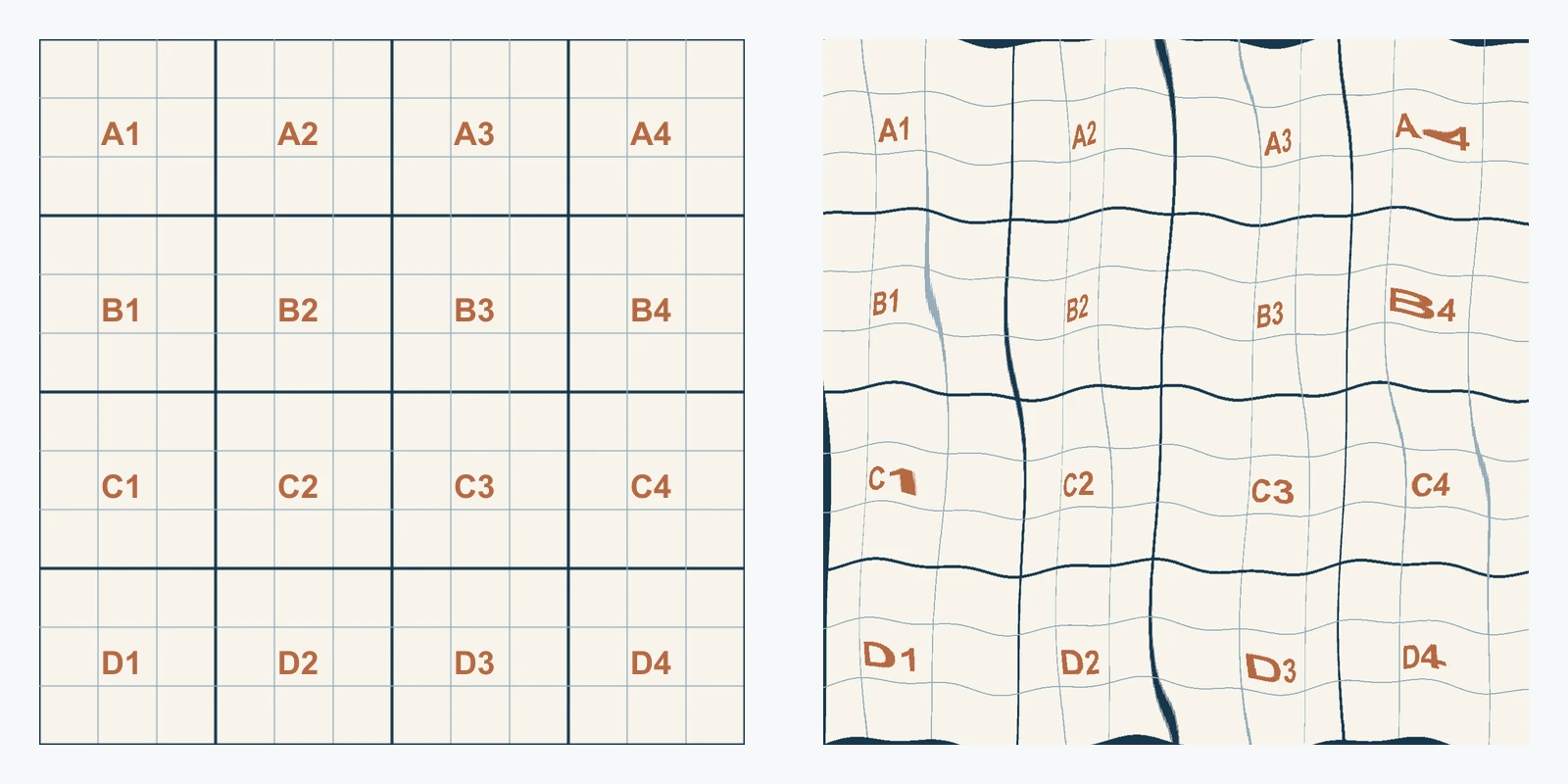
A Photoshop displacement map uses brightness values to shift pixels in another layer. For a fabric mockup, make a grayscale copy of the surface photograph, save a flattened PSD, then apply Filter > Distort > Displace to the overlaid artwork. Masks, perspective, and blending finish the composite.
This desktop workflow follows Adobe's Displace documentation. The illustrations below are original diagrams, not Photoshop screenshots. The downloadable map is synthetic practice data for observing pixel movement, not a measured cloth material or a recovered 3D surface.
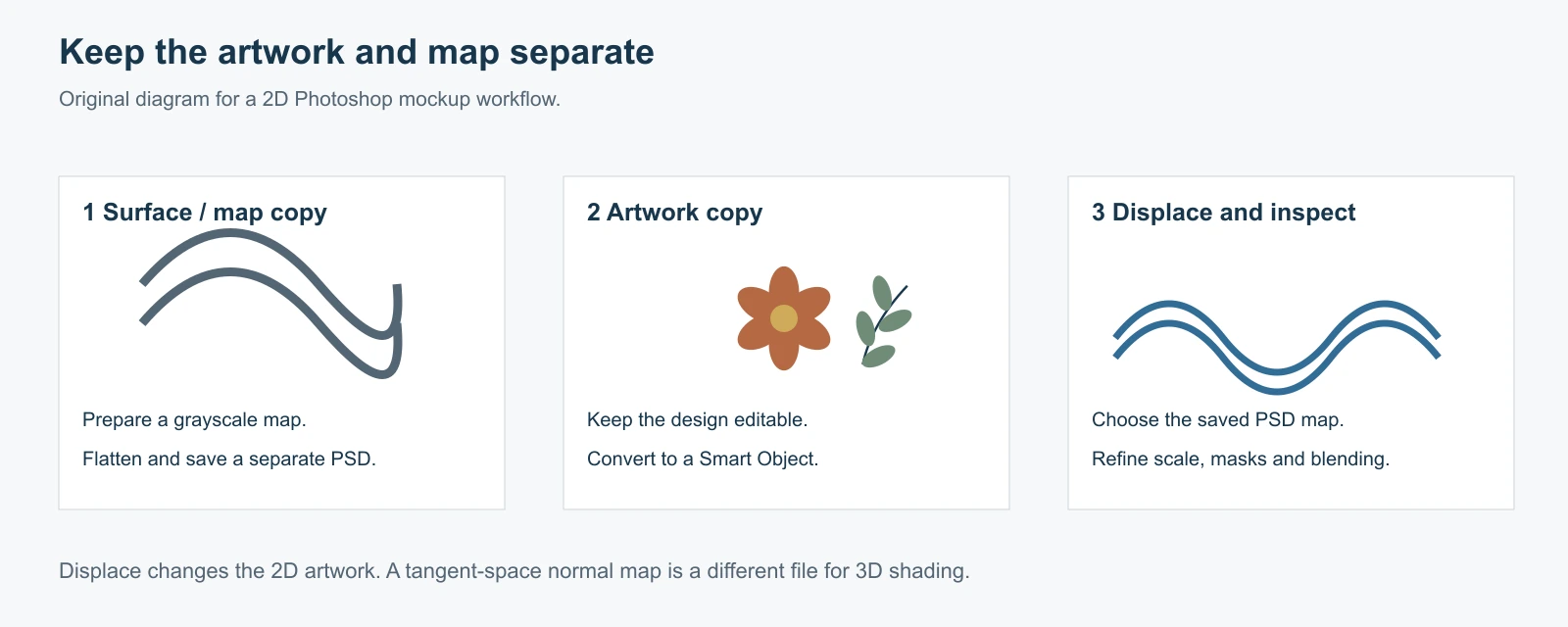
Keep the surface, artwork, and map separate
You need a surface image, artwork to place on it, and a control map. These files have different jobs.
| File | What it contains | Keep it for |
|---|---|---|
| Main mockup PSD | Full-color surface photo, artwork, masks, and lighting adjustments | Editing the final composition |
| Displacement-map PSD | Flattened grayscale control image aligned to the surface | Telling Displace where to move pixels |
| Artwork source | Original text, motifs, or design layers | Changing the design without rebuilding it |
Start with a mostly front-facing surface with readable folds or texture. Deeply occluded fabric, hard reflections, and complicated perspective require more retouching than a brightness map alone can provide.
The map comes from the destination surface, such as the shirt photograph. Your repeated pattern is the artwork being displaced. Using the pattern itself as the map makes its colors drive distortion, which usually does not help it follow the shirt.
Try the 1200 px practice pair
Download the 1200 × 1200 grid artwork and the matching grayscale practice map PSD. The two files share the same dimensions.
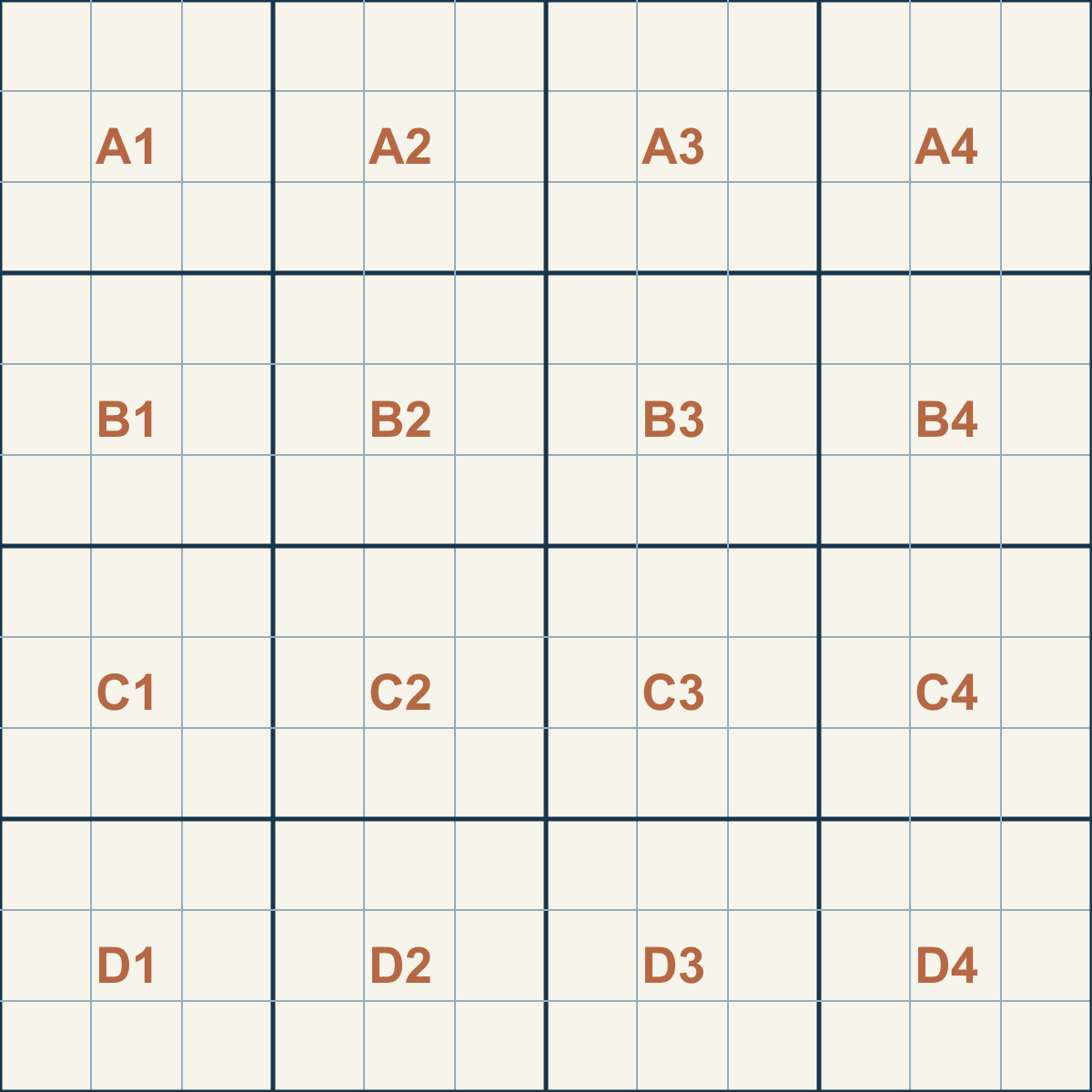
Open the grid in Photoshop, convert its layer to a Smart Object, and follow the Displace step below. Compare a small horizontal-only shift with a small vertical-only shift. Straight grid lines make the direction easier to see than an intricate floral design.
This is a filter exercise. For a real mockup, continue with a photograph of the actual surface and create the aligned map from that photo.
Build a grayscale map from the surface photograph
Open the full-color surface photograph and save the main composition. Choose Image > Duplicate to create a separate map document. Keep the same pixel dimensions and crop so the folds stay in the same positions.
In the duplicate, choose Image > Mode > Grayscale. Use 8 Bits/Channel for a straightforward one-channel practice file. The original full-color document stays unchanged.
Use Image > Adjustments > Levels to make the important light and dark transitions readable. Avoid forcing every fold to solid black or white. Strong contrast can produce an exaggerated shift, while a map concentrated around middle gray gives a subtler result.
Then use Filter > Blur > Gaussian Blur if small weave details create noisy distortion. On a 1200 px exercise, a radius around 2–4 px is a reasonable starting experiment. Judge it against the size of the folds in your image; this is not a universal setting.
Blur enough to suppress distracting fine detail while retaining the larger transitions you want the artwork to follow. A large blur can erase the very fold you were trying to describe.
Flatten this map copy with Layer > Flatten Image, then save it as a local Photoshop PSD. Keep the map beside the main project with a descriptive name. PNG and JPEG files need to be opened and saved into the required Photoshop format before selecting them in Displace.
Prepare artwork without losing map alignment
Place the design over the surface and make its broad position, scale, and perspective plausible before adding local distortion.
Prepare the artwork on a transparent document with the same pixel dimensions as the surface photo and map. Position the design inside that canvas, save an artwork PSD, and use File > Place Embedded to place it into the main mockup at the matching size and position.
The full-size artwork document gives the Smart Object a known coordinate frame. Check that placing it has not resized it. If the motif needs perspective adjustment, edit it inside that artwork document while keeping the document bounds unchanged.
A tightly cropped logo Smart Object has different bounds from the photograph. Stretching a full-photo map over it compresses the fold positions into the logo area. Match dimensions and alignment before filtering.
Keep the artwork as a Smart Object so the filter remains adjustable. Save another copy of the original design if it contains valuable editable text or vector shapes.
Apply Displace and compare one change at a time
Select the artwork Smart Object and choose Filter > Distort > Displace.
Start with small Horizontal Scale and Vertical Scale values. For the 1200 px grid exercise, try Horizontal 6 and Vertical 0, then repeat with Horizontal 0 and Vertical 6. Once the directions make sense, try both together. These are starting values for the synthetic exercise, not presets for every garment.
For the map fit, choose Stretch To Fit when you want one map fitted to the filtered image bounds. If those bounds already match the map dimensions, no different-sized repeat is needed. Tile repeats the control map and is useful only when that repetition is intentional.
Under Undefined Areas, choose an edge treatment.
- Repeat Edge Pixels extends the existing edge colors. It is often a practical starting point for photographic mockups, though large shifts can leave streaks.
- Wrap Around brings content from the opposite edge. It can suit a deliberately wrapped texture, but a copied strip from the far side can look wrong on a shirt or sign.
Select OK, choose the flattened grayscale PSD, and inspect the result. Middle gray is neutral; lighter and darker values shift pixels in opposite directions. A one-channel map uses the same brightness field for the horizontal and vertical movements you enabled.
Reopen the Displace Smart Filter to adjust the strength. Change one parameter at a time and compare at the same zoom. Large shifts can bend a straight logo into an implausible shape even when the fabric underneath has strong folds.
Mask the surface and restore believable lighting
Displace moves pixels; the visible surface boundary still needs a mask.
Use a layer mask on the displaced artwork to remove material outside the printable area. Keep cuffs, seams, straps, and foreground objects in front when the photograph requires it. Retain the mask as an editable part of the main composition.
For dark ink on a light surface, Multiply can let the photograph's shading show through. Light or opaque print often needs Normal mode and separate lighting adjustments instead. Compare the design color and the surface shadows before choosing a blend mode.
Leave some underlying texture visible without making every thread tear the artwork. If letters break into small ripples, return to the map's fine detail and blur, then reduce displacement strength.
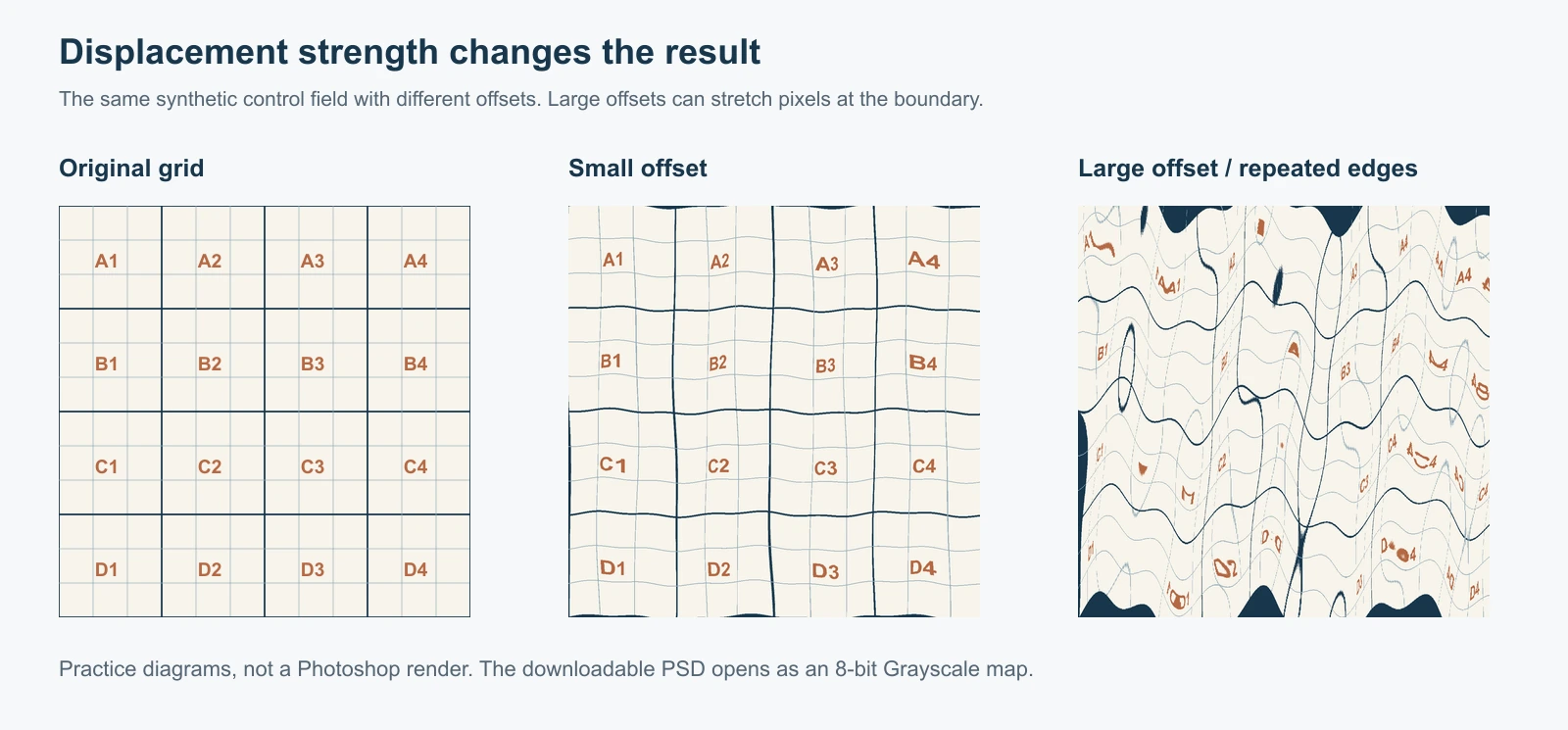
This comparison illustrates the checks to make. It does not represent a software benchmark or a photograph processed in Photoshop.
Diagnose the result before adding more filters
| Problem | Likely place to inspect | Useful next change |
|---|---|---|
| The map will not load | File format and map document | Save a flattened local PSD in Grayscale mode; avoid Bitmap mode |
| Folds bend the wrong part of the design | Map crop and Smart Object bounds | Match dimensions, position, and perspective before displacement |
| The design becomes jagged | Fine texture or extreme contrast in the map | Soften the map or reduce scale values |
| The whole design drifts | The map's overall tone | Bring unrelated light or dark regions closer to neutral gray |
| The edges smear | Undefined Areas and excessive movement | Reduce the shift and refine the mask; compare edge treatments |
| The print still looks pasted on | Perspective, masking, and lighting | Correct those separately instead of increasing Displace |
If you change the map PSD later, save it and reopen or reapply Displace with the revised map. Do not assume that editing a separate file automatically refreshes an existing composite.
Prepare a repeating pattern before placing it on a mockup
When your artwork is meant to cover a large surface, inspect the repeat before applying the mockup distortion. A seam in a flat tile can become a conspicuous stripe when it is duplicated across fabric.
Use the Seamless Pattern Checker to inspect the actual exported tile. If a finished raster image has mismatched borders, the image-to-seamless pattern workflow can repair the joins before you build the larger artwork canvas.
Keep the repaired result beside the original and check changed edge motifs. For exact typography, logos, or editable objects, retain the layered design and make precise corrections there. Seam repair does not create perspective, masks, or a Photoshop displacement PSD for you.
FAQ
Is a Photoshop displacement map the same as a 3D height map?
A grayscale image can serve related workflows, but the Photoshop Displace filter shifts pixels in a 2D layer. A 3D renderer uses its own displacement and subdivision settings to affect a surface. File formats, scale, and interpretation need to match the destination.
Can I use a normal map as the displacement map?
Tangent-space normal maps encode directions in color. They are not interchangeable with this grayscale brightness-control exercise. For normal-map work, use a normal-map workflow and validate it in the destination 3D shader.
Must the map and artwork have the same dimensions?
Photoshop can stretch or tile a differently sized map. Matching dimensions is the easier way to keep a photographic fold aligned with the correct part of a full-canvas artwork overlay. A deliberate repeating map is a different use case.
Can the map recover the true depth of a photograph?
Brightness also contains lighting, color, printing, and reflections. Treat a photo-derived map as an artistic control image. It does not establish the physical height of every bright or dark feature.
Which files should I keep after exporting the mockup?
Keep the layered main PSD, editable artwork, and the map PSD together. Export a separate presentation image for sharing. Reopening that flat export will not recover the Smart Filter, mask, or original artwork.