
Use a bump map when you want to author or adjust relief as grayscale height in a supporting shader. Use a tangent-space normal map when your destination expects explicit surface directions, especially for baked game assets. Use actual geometry or displacement when the outline and real depth matter.
A grayscale bump map stores height; a normal map stores direction. Both alter shading without moving the mesh. A normal map generated from the same height image does not automatically contain more surface detail, and bump mapping also responds to moving lights.
How we compared the two techniques
This guide compares one task: adding shallow relief to a UV-mapped surface while preserving its mesh. We evaluate authoring, information carried, integration, compositing, and failure modes. Blender 4.5 LTS and Unity 6 documentation were checked on October 22, 2026.
Our original illustration uses the same periodic height field, derivative scale, light, and shading function for both paths. One path uses the computed normals directly; the other encodes them into 8-bit RGB, decodes, and normalizes them before shading. It isolates the representation difference. It is not a Blender render, bake-quality test, or GPU benchmark.
We publish SeamlessCanvas. Its photo-derived maps appear below as a starting workflow; they do not replace a mesh-specific high-to-low-poly bake.
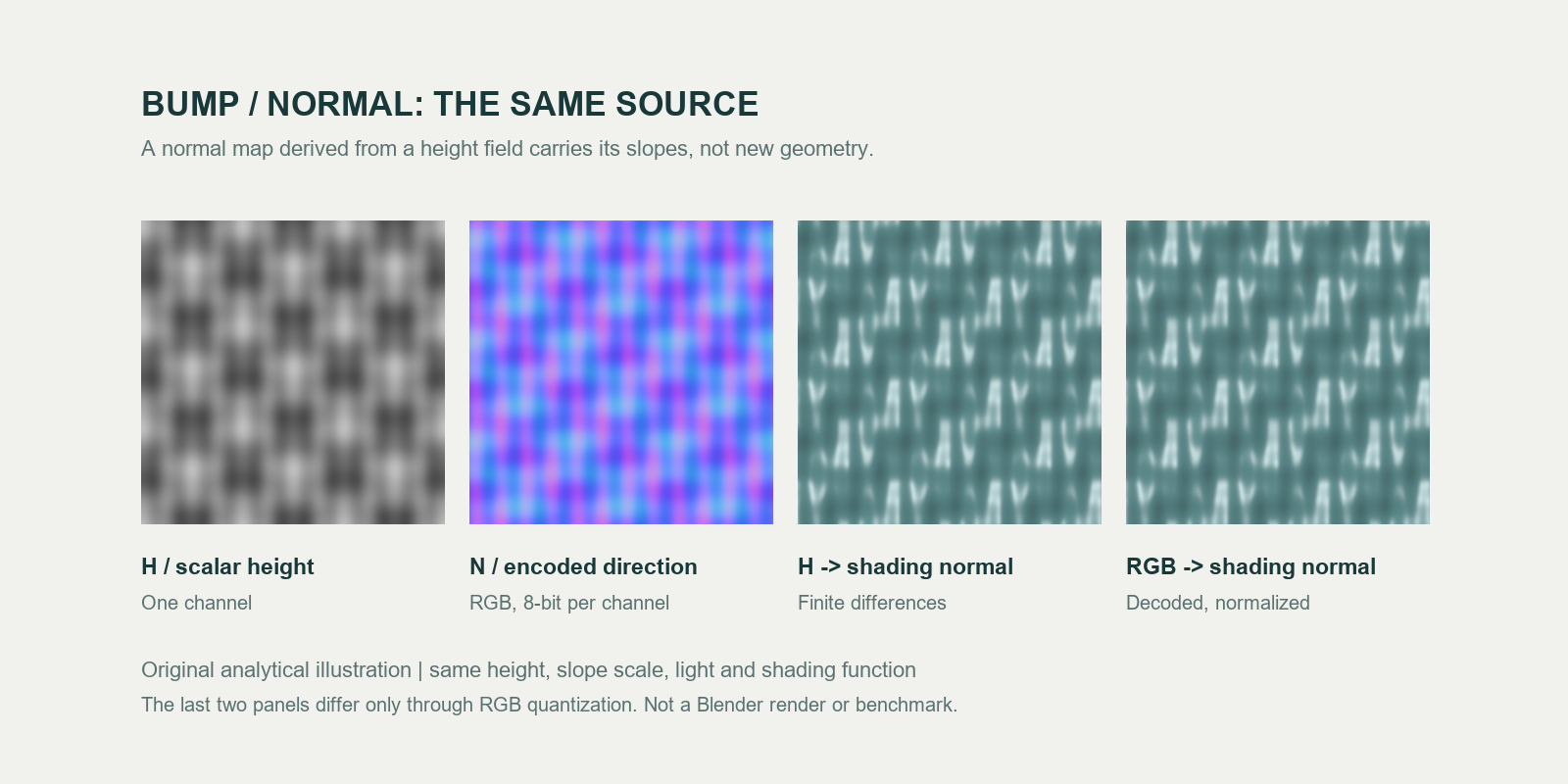
Height is shown at left, followed by its encoded normals. The final two panels use equivalent source slopes, so their small numerical differences come from RGB quantization. Different renderer filtering or tangent handling can introduce additional differences in a real project.
Decide from the job you need to finish
| Your task | Better starting choice | Main reason and limit |
|---|---|---|
| Paint shallow scratches, pores, or procedural grain in Blender | Height through Bump | Easy to edit and scale; final behavior depends on bump filtering and mapping |
| Transfer sculpted detail onto a low-poly game mesh | A baked tangent-space normal map | Records directions relative to the target mesh; requires compatible UVs and tangents |
| Deliver relief to Unity's Normal Map input | Tangent-space normal map | Matches the shader's expected input; grayscale must be converted first |
| Combine a baked bevel with separate fine grain | Baked normal plus independent bump/detail normals | Preserves two editable detail scales; avoid applying the same relief twice |
| Make brick edges, tread, or a cliff outline protrude | Geometry or displacement | Changes shape; bump and normal alone leave the outline unchanged |
| Start from one evenly lit material photograph | An estimated height/normal pair | Useful for a draft; pigment and illumination can be mistaken for geometry |
There is no useful overall score here. A painted height field, a sculpt bake, and a photo-derived map have different information sources. A “normal wins” image comparison that gives only the normal path a detailed sculpt does not isolate the map technique.
What a bump map stores
In this article, “bump map” means a scalar height texture evaluated for shading. White conventionally represents higher points and black lower points, subject to inversion and the shader's scale. The shader samples changes in height and tilts its shading normal.
Blender's Bump node exposes Height, Strength, Distance, and a Normal input. This makes grayscale painting and procedural height particularly useful: you can change the height pattern without manually editing vector colors.
The important information is the slope, rather than brightness in isolation. A constant white map and a constant black map both have zero height gradient, so neither creates relief in an ordinary bump-only setup. Adding a constant to every height value leaves those slopes unchanged. Increasing contrast changes slopes and can strengthen the effect.
A bump map is not inherently limited to vertical lighting. Derivatives in both texture directions produce a tilted normal that responds to lights from different directions. Its limits come from representing a scalar height field, filtering, and the fact that the underlying surface remains flat at the scale of the added detail.
Grayscale also does not mean “necessarily 8-bit.” Height can use greater precision. Blender's displacement guide notes that 16- or 32-bit float bump images can improve results over commonly used 8-bit images, especially when gradients otherwise reveal stepping.
What a normal map stores
A normal map encodes a direction vector. For a common tangent-space map, red and green represent the local tangent directions and blue represents the outward direction. Approximately (128, 128, 255) is the familiar flat normal in an 8-bit unsigned RGB image.
Blender's Normal Map node converts that image into a shading normal. Its documentation requires matching UV coordinates for tangent-space maps and Non-Color image interpretation.
Two origins are worth separating. A normal map derived from height stores the slopes of that height field. A normal map baked from a detailed mesh records directions from another surface relative to the target mesh and can carry information absent from a photograph. Neither origin gives the low-poly mesh the source surface's actual silhouette.
Object-space normal maps use a different reference frame and often look more colorful. Do not choose Tangent simply because the file is called a normal map; check how the asset was authored.
Connect either map correctly in Blender
Keep base color and roughness constant while setting up relief. Use a UV-mapped plane or a simple rounded object and one area light, so a change in the relief path remains visible.
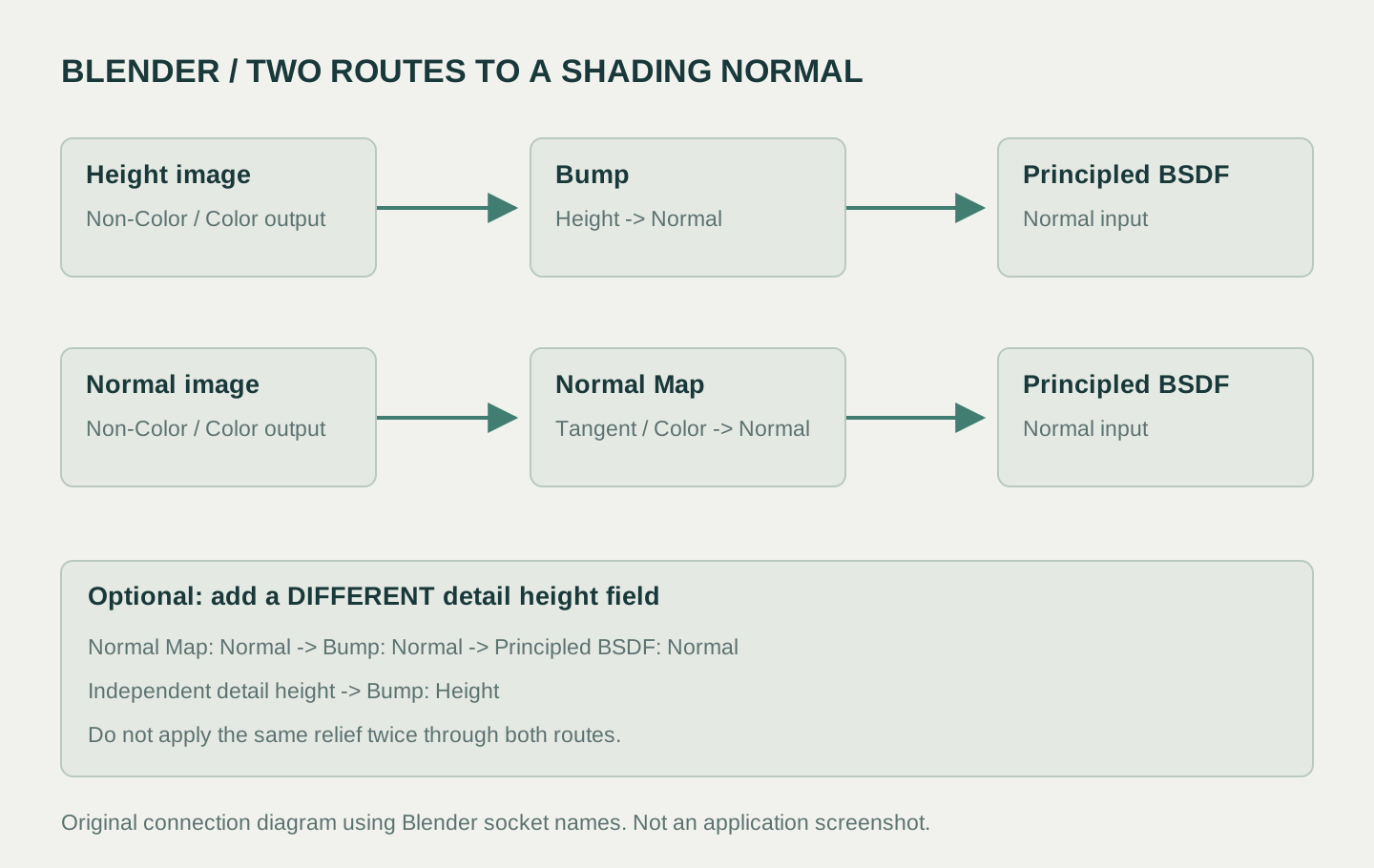
These are connection diagrams, not UI screenshots. Height enters Bump: Height; RGB normals enter Normal Map: Color. Both eventually produce a Normal output for the shader.
Route A: grayscale height through Bump
- Add an Image Texture, open the height map, and set Color Space: Non-Color.
- Connect Image Texture: Color → Bump: Height.
- Connect Bump: Normal → Principled BSDF: Normal.
- Start with a small Distance appropriate to the object's scale. Increase it until the relief is visible, then reduce it if ridges look inflated. Strength blends the effect; Distance sets the height multiplier.
- If raised marks appear recessed, compare with a known feature and use Bump's Invert option when appropriate.
Route B: RGB image through Normal Map
- Add a separate Image Texture, open the normal image, and set Color Space: Non-Color.
- Connect Image Texture: Color → Normal Map: Color.
- Select Tangent for an authored tangent-space map and use the UV map for which it was created.
- Connect Normal Map: Normal → Principled BSDF: Normal.
- Begin at Strength 1 for evaluating an existing asset. If it looks wrong, check color space, orientation, UVs, and tangent compatibility before increasing strength.
The Blender color-management guide explains why these numeric data images should bypass color conversion. An ordinary base-color image typically remains on the sRGB path.
Combine independent detail without doubling it
To add new fine grain over an existing normal map, connect Normal Map: Normal → Bump: Normal, feed the independent grain height into Bump: Height, then connect Bump: Normal → Principled BSDF: Normal.
Keep each contribution identifiable. If the normal map was generated from the exact same height map, adding that height again usually exaggerates the same relief. Disconnect each path in turn to check what it contributes. Do not average RGB normal-map colors to blend two direction fields; use a method designed for normal blending or compose height sources before conversion when appropriate.
Match normal conventions in Unity
Unity's normal-map introduction specifies Y+ normal maps, often called OpenGL format. “DirectX” commonly describes the opposite green-channel convention in texture exports. It is a convention label, not a statement that the map only runs through one graphics API.
For an existing RGB normal image, select Texture Type: Normal map in its importer and apply the setting. Leave grayscale conversion disabled for that already encoded normal map. Assign the imported asset to the material's Normal Map input.
For a true grayscale height image, Unity's Normal Map import settings provide Create From Grayscale, with Bumpiness and filtering controls. That creates normal information from height; simply renaming a grayscale file does not.
If the convention disagrees, the importer offers Flip Green Channel. Verify one known raised mark under a light from above and below before flipping it. A green-channel flip changes one direction component; it does not fix incorrect UVs, an object-space map, or every possible inside-out appearance. These settings apply in Unity's importer; verify the convention again when exporting from any generator.
Conversion, image quality, and performance limits
Height-to-normal conversion computes local gradients and encodes the resulting vectors. Its strength and pixel spacing matter. Resizing a height image or changing its UV scale can change how a given conversion reads, so compare at the intended texture resolution and surface scale.
Normal-to-height conversion is a reconstruction problem. The normal map does not carry absolute height, and edited or baked direction fields may not correspond to one globally consistent height field. Reconstructed height can drift or lose detail. Keep the original height or sculpt if it is available.
Use lossless source files where practical. Strong compression can introduce ridges into height or disturb normal directions; data import and appropriate normal-map compression matter as much as extension names.
Do not choose from a universal “bump is faster” rule. Runtime cost depends on shader implementation, samples, derivatives, texture format, compression, resolution, and hardware. A one-channel source image does not guarantee lower final memory use than an engine-compressed normal map. We have not run a timing or memory benchmark for these workflows. Profile the actual target if that difference affects delivery.
Troubleshoot the result by symptom
| Symptom | Check first | What to try |
|---|---|---|
| Grayscale texture creates strange colored lighting | Wrong decoding path | Use Bump: Height, or convert to an RGB normal map |
| Surface appears swollen or deeply engraved | Excessive strength or duplicated height | Isolate one relief route and reduce the height scale |
| Only the vertical lighting feels reversed | Y convention | Verify a known feature; test one green-channel flip |
| Seams appear on a baked asset | UV layout, padding, tangent basis, mesh changes | Preserve the bake target's triangulation and compatible tangents; rebake when needed |
| The center looks detailed but the outline is flat | Shading-only technique | Model the edge or use properly configured displacement |
| Painted lettering becomes a raised ridge | Color was interpreted as height | Remove pigment-driven relief from the source height map |
Real displacement changes surface positions and requires suitable geometry and renderer settings. Blender's displacement documentation separates true displacement from bump shading. Making a normal map stronger cannot recover missing parallax, real holes, or a displaced silhouette.
Start with a photo-derived pair when that fits
The SeamlessCanvas photo-to-PBR tool generates maps free after sign-in. Its current height output estimates relief from image luminance and local variation, and its normal output derives directions from that estimated height. It does not inspect an unseen high-poly mesh.
Use it to explore a stone, wood, or fabric material from a clean image. Start by using either the generated height through Bump or the generated normal through Normal Map. Check the result under moving light, remove false relief from shadows and color markings, then choose the path your destination supports.
For a character sculpt, hard-surface bake, or asset whose shading depends on its exact low-poly topology, use a dedicated baking workflow. For reflection finish rather than relief, follow the separate roughness map guide.
Frequently asked questions
Is a normal map always more accurate?
No. Its information source matters. A detailed sculpt bake can capture directions missing from a simple height image; converting that same height image to RGB does not discover additional shape. Import errors can make either route look worse.
Can I use a bump map in a normal-map slot?
Convert it first when the slot expects encoded RGB directions. Blender evaluates grayscale height through Bump; Unity can convert height through Create From Grayscale in the importer.
Should I use both maps from a generated set?
Use both when they contribute different information through a deliberate combination. If the normal was derived from the included height, begin with one relief route and add independent detail only when needed.
Do either of them change the silhouette?
No. Both techniques change shading normals while preserving the mesh. Use geometry or actual displacement for visible edge depth and shape changes.
Official references
- Blender 4.5 Bump node — height-derived shading normals and controls.
- Blender 4.5 Normal Map node — direction decoding, spaces, and UV requirements.
- Blender 4.5 color management — numeric image data.
- Blender 4.5 displacement — shading relief versus actual surface displacement.
- Unity 6 introduction to normal maps — normal mapping and the Y+ convention.
- Unity 6 Normal Map import settings — grayscale conversion and green-channel inversion.