
A roughness map controls how sharp or spread out reflections appear across a material. In a conventional metal/roughness workflow, black means smooth, white means rough, and gray values sit between them. It describes microscopic surface variation through a shading parameter; it does not raise the surface, cut grooves, or turn plastic into metal.
The useful question is usually where a surface should reflect differently. A polished patch on a stone floor, a greasy fingerprint on a handle, and dry dust on a painted panel need different roughness patterns even if their base colors barely change.
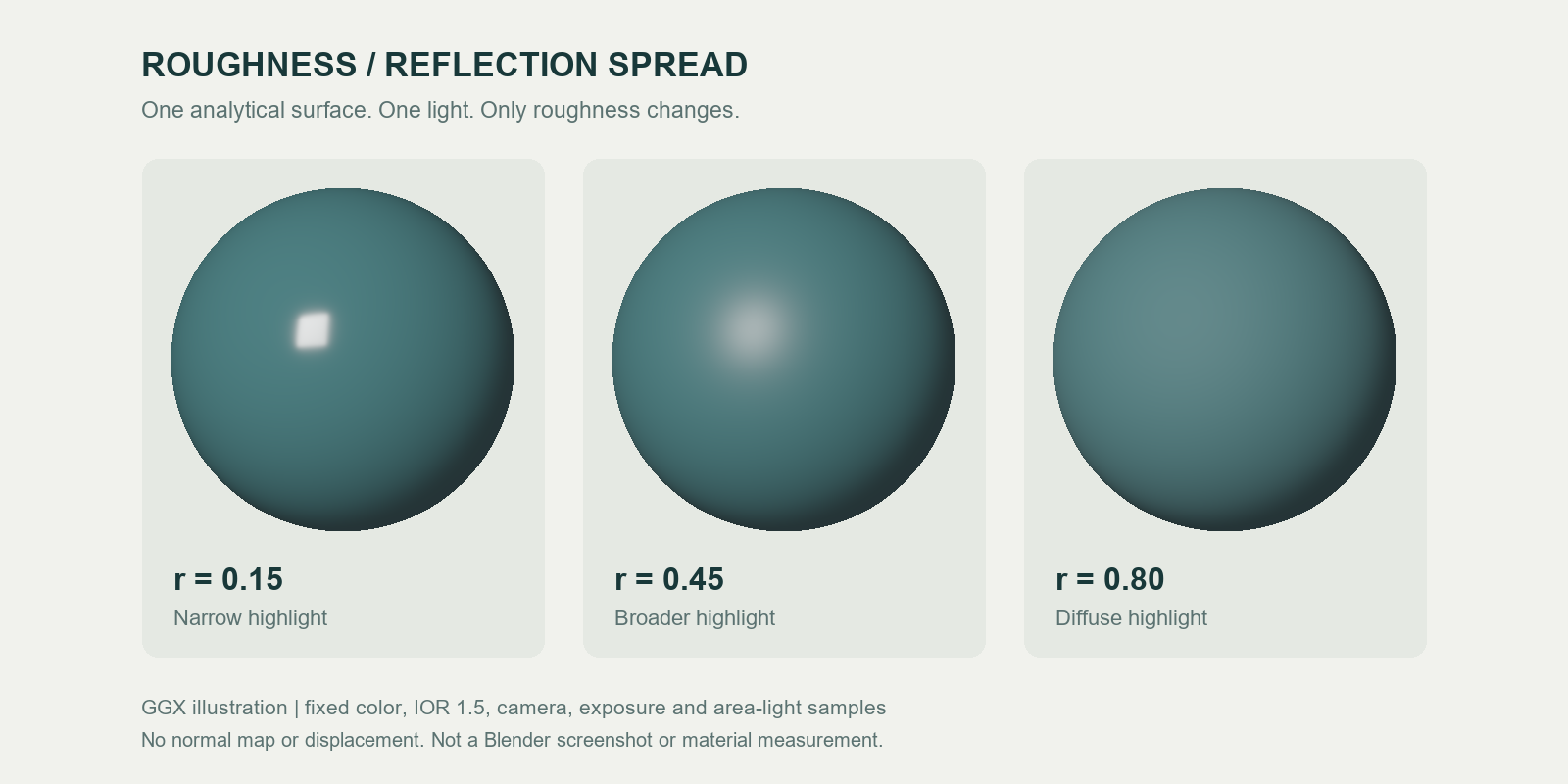
Original analytical illustration using a simplified GGX shading model. Color, geometry, IOR, camera, exposure, and sampled light stay fixed. This demonstrates reflection spread; it is not a Blender screenshot, measured material reference, or renderer benchmark.
What a roughness map actually changes
In a microfacet model, the material represents a distribution of tiny surface orientations. A smooth distribution produces a concentrated reflection; a rougher distribution spreads it over more directions. Blender's Principled BSDF documentation defines Roughness in terms of specular reflection and transmission.
That distinction matters when judging a map. A high-roughness material can still reflect light, particularly near grazing angles. A dark low-roughness object may look almost black if its environment contains nothing bright to reflect. Raising the exposure or adding metalness will not repair a missing lighting reference.
Start with a recognizable reflection: a rectangular area light, a bright window, or an environment containing both bright and dark regions. A uniformly lit scene makes roughness differences harder to read.
| Map or parameter | What it controls | What it cannot solve |
|---|---|---|
| Base color | The material's color information | Reflection blur or relief |
| Roughness | Reflection spread at each texel | Raised edges or silhouette |
| Normal or bump | Apparent surface orientation for lighting | Real geometry or reflection blur by itself |
| Metallic | Whether the surface uses a metal or dielectric response | General dirt, wear, or roughness |
For the relief side of this distinction, read bump map vs normal map.
Black, white, and the smoothness convention
For a normalized roughness map, 0 is smooth and 1 is rough. An 8-bit image value of 128 represents roughly 0.50 when interpreted as data. A value of 64 is about 0.25, rather than a universal setting for a named material.
Smoothness uses the opposite direction. Where the destination expects a compatible normalized smoothness parameter, use:
smoothness = 1 - roughness
8-bit smoothness = 255 - 8-bit roughness
A roughness value of 0.25 therefore becomes smoothness 0.75. Check the source specification before applying this to a texture named “gloss”: older gloss maps may encode a different response, and an inversion alone does not guarantee that two renderers match.
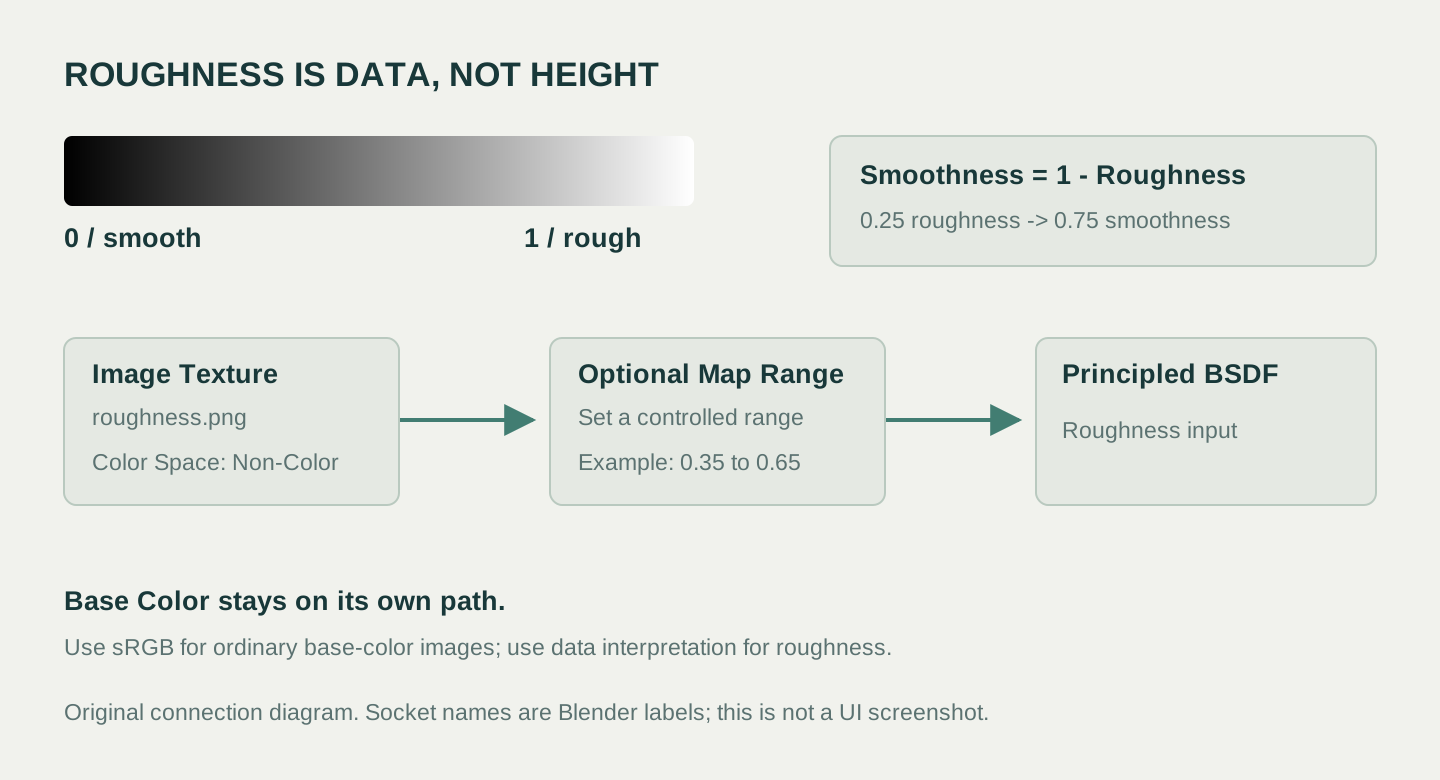
Original connection diagram. The upper-right formula converts the value convention; the lower path shows Blender socket names. The optional 0.35–0.65 range is an authoring example, not a measured material preset.
Build a useful roughness map from a photo
A photograph mixes pigment, surface finish, illumination, reflections, and camera processing. A black printed letter on smooth plastic may have the same roughness as the white plastic around it. Turning that photograph into grayscale would invent a roughness difference based on color.
Use the photo as evidence about regions and wear, then author the finish you need.
- Choose a clean source. Prefer an evenly lit, front-facing image with no hard cast shadows or clipped highlights. Correct perspective before creating related maps.
- Separate material regions. Distinguish exposed metal, paint, dust, wet areas, and printed markings. Decide which differences actually change finish.
- Start with a constant. Give one material region a uniform roughness and view it under the intended lighting. Establish the overall finish before adding detail.
- Introduce restrained variation. Add broad wear or handling patterns first. Add fine grain only where it remains visible at the intended object size.
- Limit the value range. For an exploratory comparison, map a mask into 0.35–0.65 rather than immediately using pure black and white. Widen that range only when the reference calls for it.
- Check the tiled result. Inspect several repeats and the final mesh. A map can have invisible color seams yet reveal a repeating shiny square when a highlight crosses it.
For a handled painted panel, one plausible starting hypothesis is that regularly rubbed areas become smoother and settled dust becomes rougher. That is an artistic hypothesis to inspect against a reference. Abrasive wear can also make a surface rougher; “worn” is not a fixed roughness value.
Export a lossless grayscale image, or preserve the intended channel in a packed texture. Eight-bit maps are often adequate for ordinary variation; if smooth gradients reveal stepping, investigate bit depth alongside compression, range, and texture resolution. More pixels will not fix an incorrect material interpretation.
Connect the map in Blender
These instructions use Blender 4.5 LTS naming and a conventional Principled material.
- Select a UV-mapped object, open the Shader Editor, and create a material with Principled BSDF → Material Output: Surface.
- Add an Image Texture node and open the roughness image.
- Set that image's Color Space to Non-Color. Roughness values are numeric data. Blender's color management guide explains why data textures should avoid color conversion.
- Connect Image Texture: Color → Principled BSDF: Roughness. An RGB image whose channels are identical can use this direct path. For packed textures, use Separate Color and connect only the channel containing roughness.
- Use the same UV layout and intended scale as the other material maps. Connect base color through its own image node, normally using sRGB for an ordinary color image.
- Preview with a clear reflection. Temporarily disconnect normal and bump maps if they make the roughness difficult to judge.
For controlled adjustment, insert Map Range between the grayscale value and Roughness. With From Min 0, From Max 1, To Min 0.35, and To Max 0.65, the result follows r = 0.35 + 0.30 × mask. Enable Clamp when your input might exceed the expected range. A Color Ramp offers more localized tonal control, but an aggressive ramp can erase subtle transitions.
Do not connect the roughness image to Base Color, Normal, or Displacement to make it “stronger.” Each socket interprets the numbers differently.
Run a controlled reflection check
Use this small scene as a repeatable diagnostic, not a promise of identical output across renderers.
Place a sphere and a flat plane under one rectangular area light. Use one neutral base color, Metallic 0, and a fixed IOR. Disable coat and texture-driven normals initially. Keep exposure, light size, position, mesh, and UV scale unchanged.
First compare constant roughness values such as 0.15, 0.45, and 0.80. Then replace the constant with your map. The sphere reveals the reflection's shape; the plane makes regional masks and repeated patterns easier to inspect. Orbit the view and move the light separately so you can identify which change causes a defect.
Finally restore the base-color and normal maps one at a time. If a material only looks convincing with a particular bright stripe in the original photo, the source probably contains lighting that should not be baked into the material.
Bring roughness into Unity correctly
Unity material inputs depend on the render pipeline and shader. A standalone roughness PNG is not automatically a drop-in smoothness map.
| Destination | What to prepare | Import or material check |
|---|---|---|
| URP Lit, metallic workflow | Convert roughness to smoothness; pack it into Metallic Map alpha when that source is selected | Set Smoothness Source appropriately; the Smoothness slider multiplies the map |
| HDRP Lit Mask Map | R metallic, G ambient occlusion, B detail mask, A smoothness | Import as Default with sRGB disabled |
| Custom shader or Shader Graph | Supply roughness or smoothness according to the graph's definition | Confirm channel, inversion, and data interpretation |
The Unity 6 URP Lit reference documents Metallic Alpha and Albedo Alpha smoothness sources and the multiplier. To inspect a map without additionally reducing smoothness, start that multiplier at 1. Preserve a real alpha channel when exporting; a JPEG cannot carry it.
HDRP uses a different packing layout, documented in Mask and detail maps. An ORM texture from another workflow is not an HDRP Mask Map. Match the shader's channel contract before assessing visual quality.
Fix the common failures
| Symptom | Likely cause | Useful first check |
|---|---|---|
| Everything looks wet | Roughness is too low, smoothness was not inverted, or a data image received sRGB decoding | Replace the map with constant 0.5; then inspect convention and color space |
| Every patch looks chalky | Values are too high or variation was compressed into a narrow rough range | Inspect actual channel values; temporarily remove the remapping node |
| Printed graphics change the shine | Base-color brightness became roughness without material reasoning | Paint one consistent finish across the print and substrate as a comparison |
| A grid appears only in reflections | The roughness tile has border discontinuities or obvious repeated masks | Inspect multiple repeats under a moving highlight |
| Blender and Unity disagree | Different conventions, packing, multipliers, lighting, or shader responses | Validate the imported channel before changing the source map |
| Adjustments seem ineffective | Missing reflection features, wrong UVs/channel, or an active coat layer | Use a known area-light reflection and isolate the base roughness path |
Generate a starting map with SeamlessCanvas
The photo-to-PBR texture tool generates maps free after sign-in. We publish SeamlessCanvas, so this is our own tool. Its current roughness output estimates values from image luminance and local contrast; it does not measure physical roughness or separate every pigment change from a finish change.
Upload an evenly lit source, generate the roughness map, and inspect it using the Blender procedure above. Flatten false variation from lettering or shadows, then adjust the overall range in the material. Normal and height outputs address relief through separate paths.
This workflow is useful for prototypes and an editable first pass. Use measured references, controlled capture, or dedicated material authoring when a photographed product's finish must match closely. For repeatable base images, start with the image-to-seamless texture workflow before deriving the maps.
Frequently asked questions
Is roughness the same as a bump map?
No. Roughness describes reflection spread; bump uses height differences to alter the shading normal. A surface can be smooth but deeply grooved, or geometrically flat with a rough finish.
Should a roughness map use sRGB or Non-Color?
Use Non-Color in Blender for numeric roughness data. In engines, use the data-texture import settings appropriate to the shader and packed channels. Ordinary base-color images normally follow the color-image path.
Can I just invert a gloss map?
Yes when its documented smoothness/gloss convention is the complement of the destination roughness parameter. Check older assets carefully: “gloss” can refer to a different parameterization. Compare a reference material after conversion.
Why does my roughness map look almost gray?
A narrow gray range can be intentional. Many finishes need modest variation rather than a black-and-white mask. Judge the reflected light on the model, not the image's contrast in an editor.
Official references
- Blender 4.5 Principled BSDF — shader parameters and reflection roughness.
- Blender 4.5 color management — color images versus numeric data.
- Unity 6 URP Lit material reference — smoothness sources and multiplier.
- Unity HDRP 17 Mask and detail maps — packed channels and import settings.
Documentation and product implementation checked October 22, 2026. The example values and analytical illustrations are teaching aids, not measured presets.