
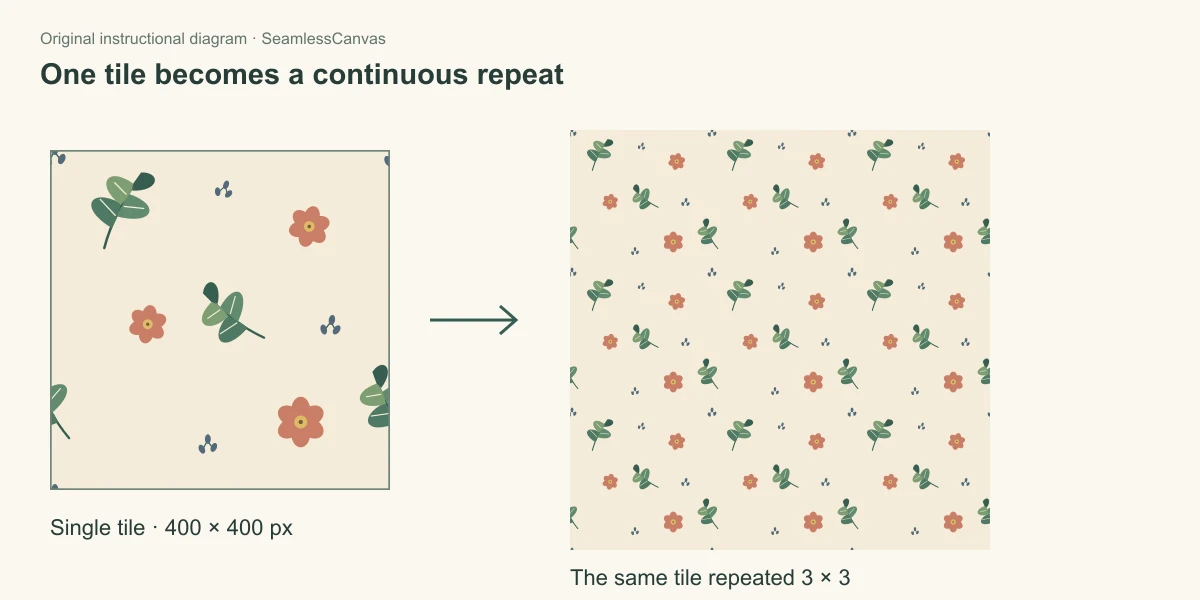
To create seamless patterns, arrange your motifs inside a tile, make anything crossing an edge continue at the opposite edge, then test several copies together. This guide follows one original botanical example from separate elements to an exported repeat. You can use the same geometry for flowers, icons, hand-drawn objects, or abstract shapes.
The example uses a straight repeat: every tile sits next to an identical neighbor without a stagger. It uses a square for easy arithmetic, but rectangular tiles work too. The width and height simply have different wrap distances.
Already have a complete image? Use the existing-image repair guide. Repairing a flattened photo or illustration is a different task from arranging editable motifs. For software-specific controls, use the Photoshop, Illustrator, or Procreate tutorial.
Before you start
You need an editor that can keep separate elements on layers, move artwork by an exact distance, and wrap pixels or duplicate objects across the canvas. Keep an editable source file as well as your exported image.
The illustrations below are original instructional diagrams, not screenshots of a design application. The same artwork continues through each step. Open the starting composition, shifted composition, or finished tile to compare the actual assets while practicing. You can use these original assets for this exercise.
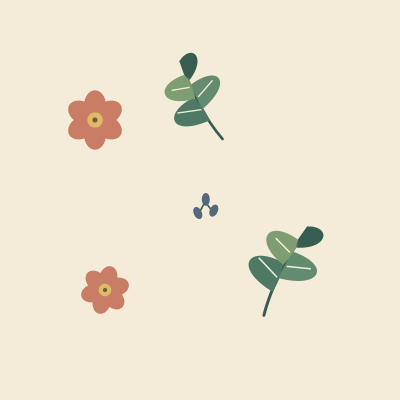
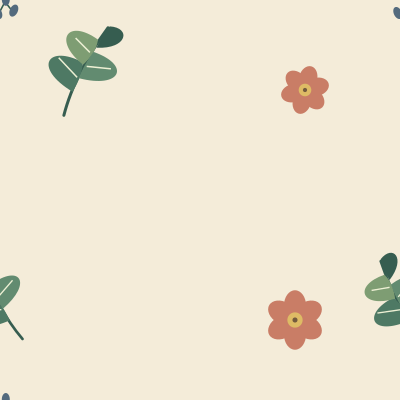
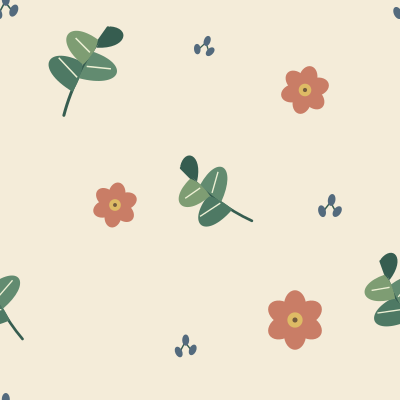
Step 1: Arrange motifs inside one tile
Start with a 400 × 400 px practice canvas. This is a teaching size, not a recommended production resolution. For client work, use the pixel dimensions and physical scale required by the final project.
Place a plain background on its own layer. Add several separate motifs and keep all of them fully inside the canvas for now. The example uses two leafy sprigs, two flowers, and a small seed cluster. Leave some empty space around the outside edges; that space will move into the middle in the next step.
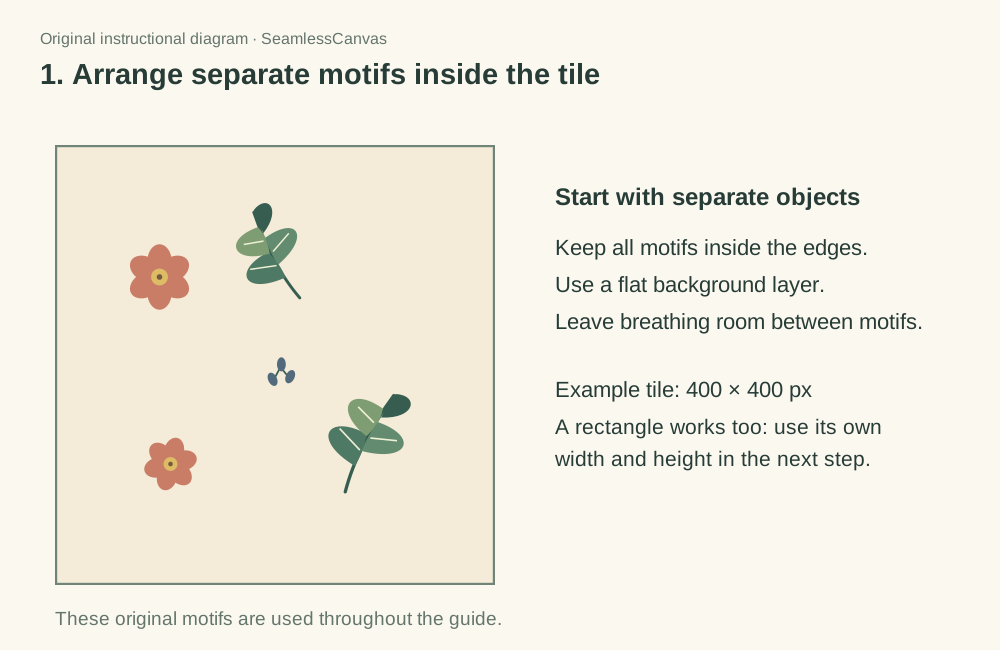
Vary the direction and size of related objects. Avoid placing all the dark shapes in one corner. Do not spend too long filling every gap yet: you need to see the larger repeat before judging the spacing.
Step 2: Wrap the artwork by half the tile
Save the layered source. Make a working copy, then shift the entire composition by half its width horizontally and half its height vertically, wrapping anything that moves beyond the canvas back to the opposite side. In an editor with a pixel Offset filter, apply it to a rendered copy of the composition with wrapping enabled. Moving a layer off-canvas without wrapping will lose the pieces you need.
For this example, the shift is +200 px on both axes. The original top-left quadrant moves to the bottom-right, and the original top-right moves to the bottom-left. The original outer borders meet in a cross at the center.
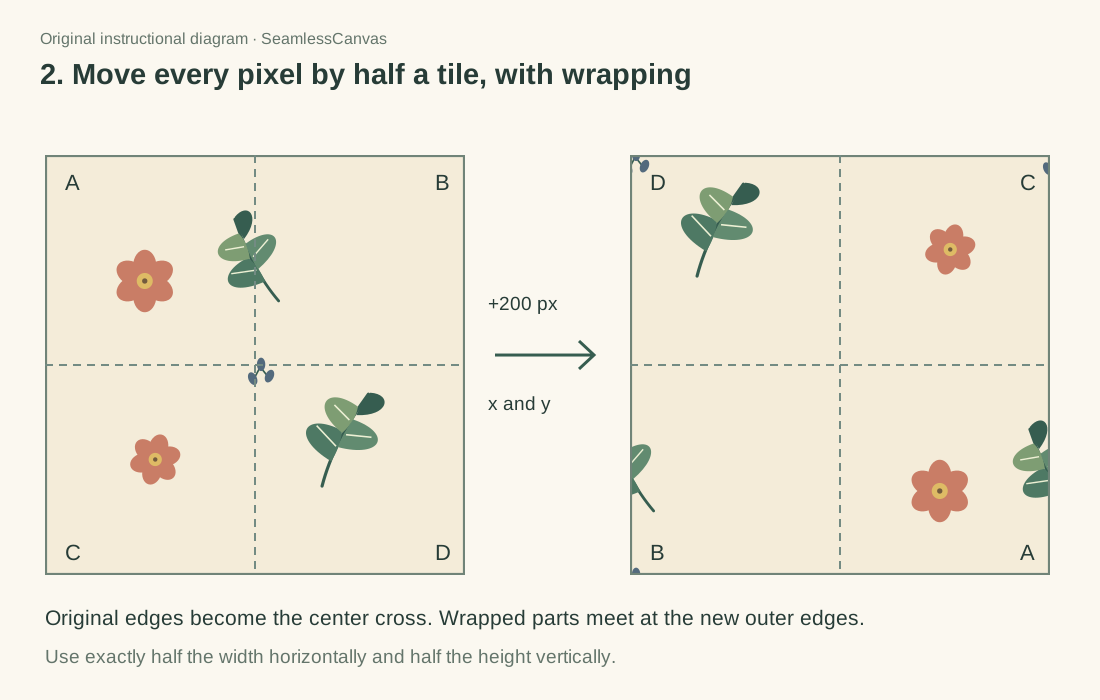
The new outer borders come from adjacent parts of the original image, so they already continue into one another. The leafy sprig that began at horizontal position 200 now straddles the left and right borders. Its two visible fragments must stay paired.
For a rectangular 600 × 400 px tile, use 300 px horizontally and 200 px vertically. Even pixel dimensions make an exact half-pixel-free shift easier in a raster workflow.
Step 3: Fill the new interior gaps
Add new motifs in the open areas inside the shifted composition. In this example, a diagonal sprig, a smaller flower, and three seed clusters fill the gaps. The dashed circles identify the additions; the existing edge fragments stay unchanged.
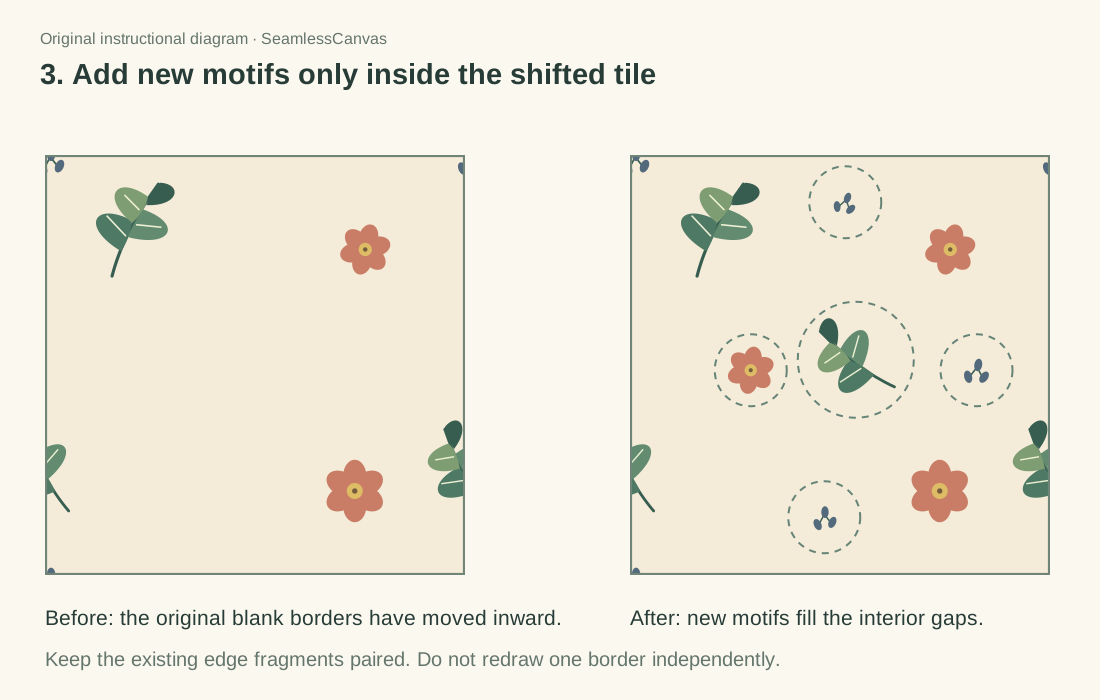
Start with one medium motif, then add smaller fillers only where needed. Check that the spaces between objects have a varied rhythm instead of forming equally sized boxes.
Keep new artwork inside the borders at this stage. If you need to move an object across an edge, duplicate it by exactly one full tile width or height. On a 400 px wide tile, an object at x = -10 needs an identical copy at x = 390, at the same vertical position. An object crossing both axes needs its matching copies at all four corners.
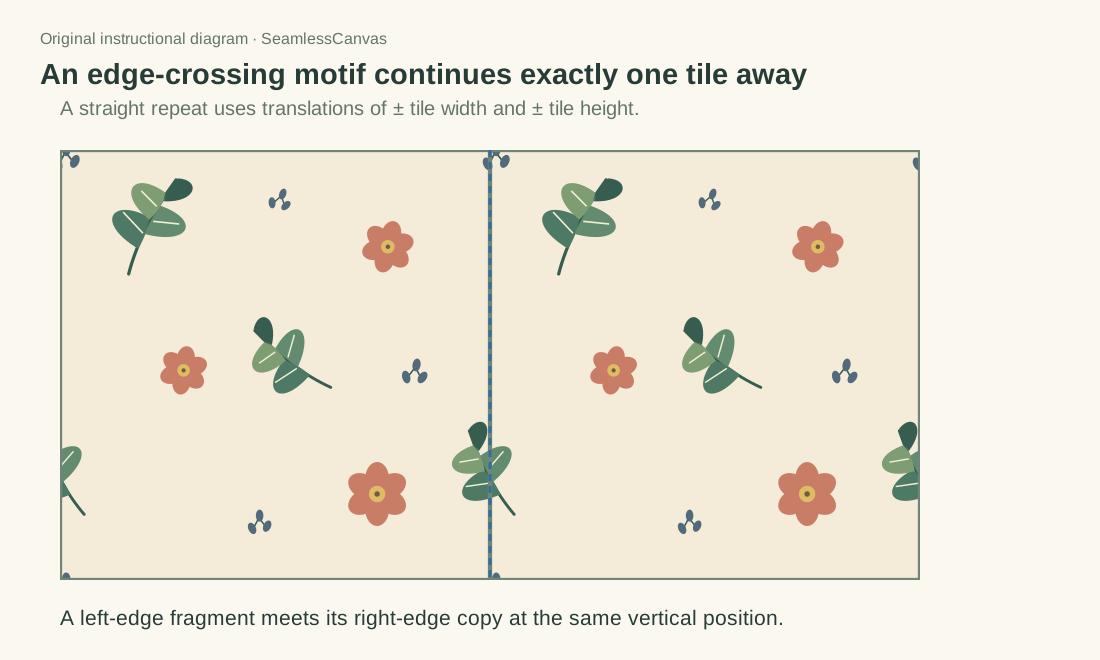
Matching copies must keep the same scale, rotation, color, and relative position. A visual approximation can leave a small jump even when the overall pattern looks plausible.
Step 4: Check how the repeat behaves
Repeat the tile in a 3 × 3 grid with no gaps and no rotation. Inspect the joins close up, then zoom out to judge the pattern as a surface.
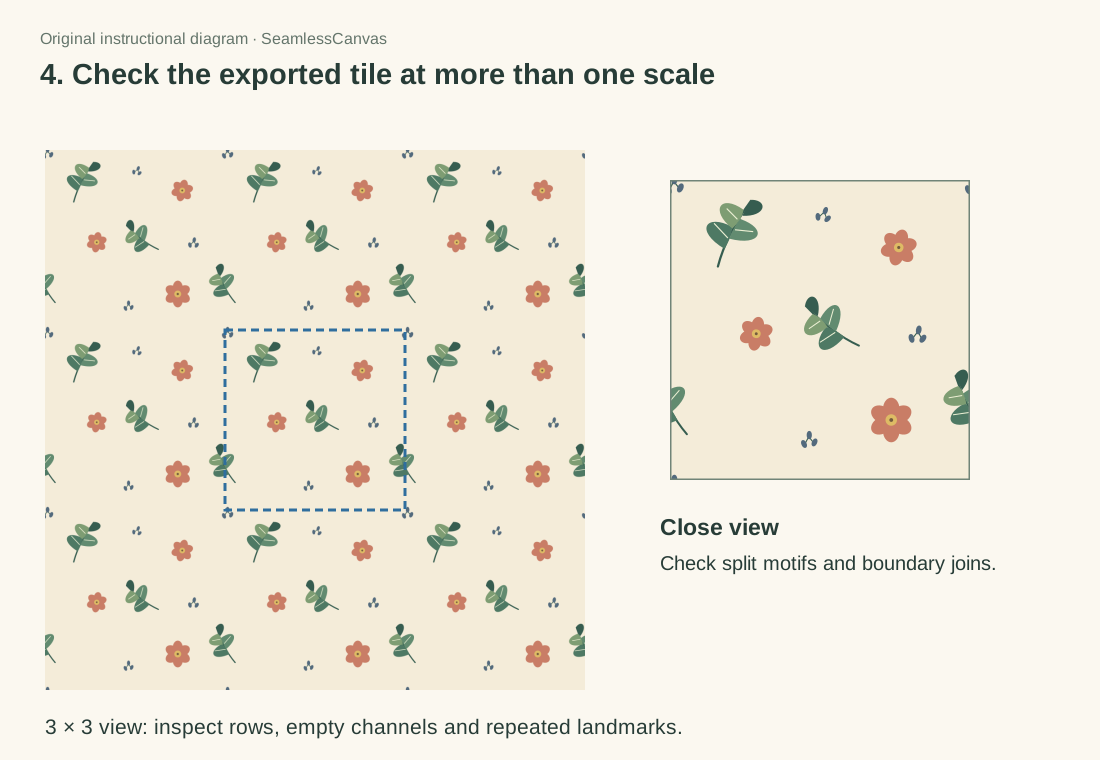
| What you see | What to change |
|---|---|
| A cut flower or a leaf that jumps at a boundary | Correct the full-width or full-height translation of its matching copy |
| A pale line between every tile | Check transparent padding, canvas bounds, and export dimensions |
| A repeated empty cross | Adjust the interior spacing while preserving paired edge fragments |
| A conspicuous row of flowers | Move or rotate a motif and test the larger repeat again |
| A large dark patch repeating regularly | Distribute contrast rather than trying to hide it with extra fillers |
A pattern can be technically seamless and still have an obvious rhythm. You do not have to eliminate all repetition, but you should decide whether that rhythm suits the final product.
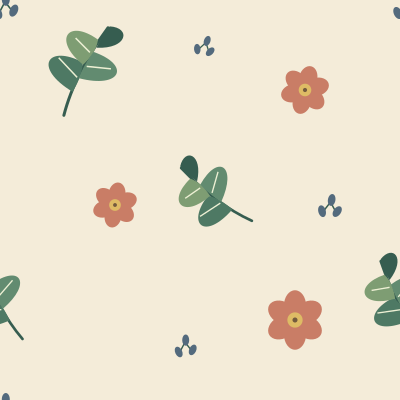
After export, open the exact PNG or JPEG in the Seamless Pattern Checker. This catches problems introduced by export bounds or transparency that were absent from the editable document. The original practice PNG tile is available if you want to inspect this example yourself.
Step 5: Export one complete repeat unit
Export only the original tile bounds. Do not add a border, spacing, labels, crop marks, or bleed to the repeat unit. Save PNG for lossless detail or transparency; use JPEG if an opaque background and smaller file are more suitable. Keep the layered source separately.
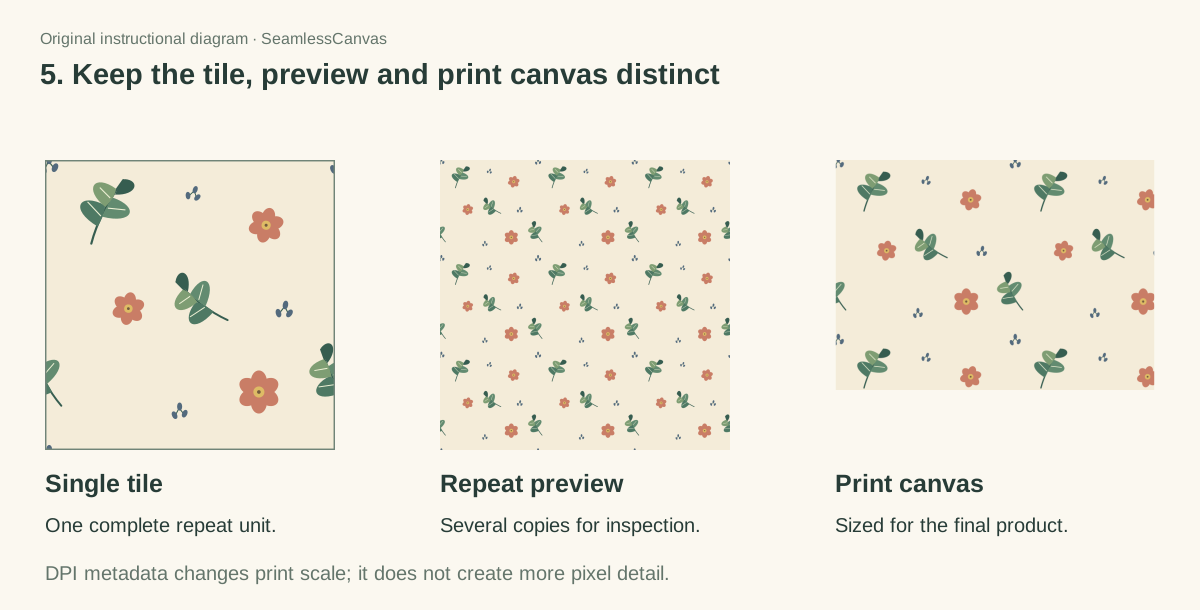
There are three different deliverables:
- Single tile: one repeat unit that another tool can duplicate.
- Repeat preview: several tiled copies used to inspect or present the design.
- Production canvas: a filled image sized to a specific product or print brief. Its outer crop may cut through a repeat, so it is not automatically a new seamless tile.
For a larger raster image, the Pattern Filler can repeat a finished tile across a canvas. Follow the printer's required pixel dimensions, physical size, color workflow, and file type. Changing DPI metadata alone does not create detail that is missing from the artwork.
If your starting point is an existing image
A flattened image may contain mismatched edge colors, cut motifs, or photographic lighting. The half-tile shift reveals those joins, but it does not repair them. Follow the manual Offset repair workflow if you need local retouching control.
You can also try the Seamless Pattern Generator to repair an existing image's border transition. Compare the result with the source and inspect the larger repeat before using it. The output is a flattened image; it does not reconstruct editable vector objects or recover your original layers.
FAQ
How do I make a repeating pattern without visible edges?
Use a precise wrap so that artwork leaving one edge re-enters at the opposite edge. For separate motifs, duplicate by the exact tile width or height. For a flattened image, shift by half the tile dimensions with wrapping enabled, then repair the exposed center joins while preserving the new outside borders.
Does a seamless pattern have to be square?
No. A rectangular tile works in a straight repeat as long as opposite edges continue correctly. Use the actual width for horizontal copies and the actual height for vertical copies. Staggered layouts need their own repeat geometry and should be tested in the layout where they will be used.
What is a seamless pattern file?
A seamless pattern file commonly means an image containing one repeat unit with matching opposite edges. PNG and JPEG can carry that artwork; the extension itself does not prove seamlessness. A design application's pattern preset or swatch is a different kind of file or saved resource, so confirm what the recipient needs.
Can I deliver a three by three preview instead of a tile?
A preview is useful for approval, but it changes the repeat scale if the recipient treats the whole image as one tile. Supply the single tile separately, label the preview, and include a larger production canvas only when it is requested.
What size should the tile be for printing?
Start with the intended physical repeat size and the printer's required pixel density. For example, a 6 inch repeat at 300 pixels per inch needs 1800 pixels along that dimension. That calculation describes the required pixels; it does not make a small source image sharper. Ask the printer how it expects scale and color to be specified before delivery.