
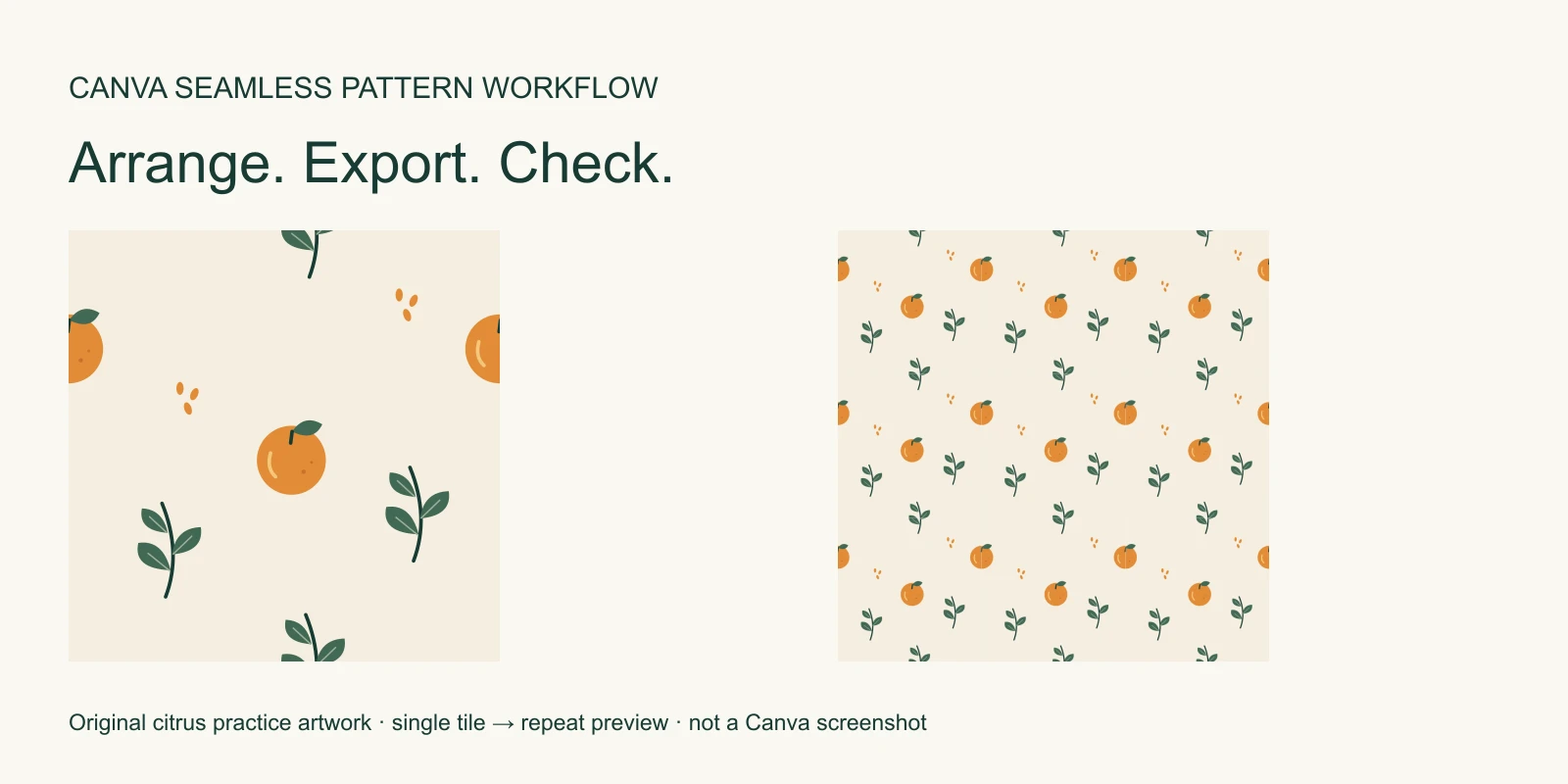
To make a seamless pattern in Canva, build one tile, duplicate any edge-crossing artwork exactly one tile width or height away, download that page as a PNG, and test the actual file in a repeat. Keep the Canva design as your editable original. The exported PNG is a separate, flattened version for checking and placing elsewhere.
We checked Canva's current download and upload instructions alongside Jennifer Maker's manual pattern tutorial. Canva's pattern generator page also describes a PatternedAI app workflow for generating new designs; that is a separate starting point from arranging your existing motifs.
Get the original practice artwork
Start with the transparent orange, leaf, and seed PNGs below. These are original SeamlessCanvas illustrations supplied for this exercise. You may use and adapt them in personal or commercial patterns. No signup is required for the files.
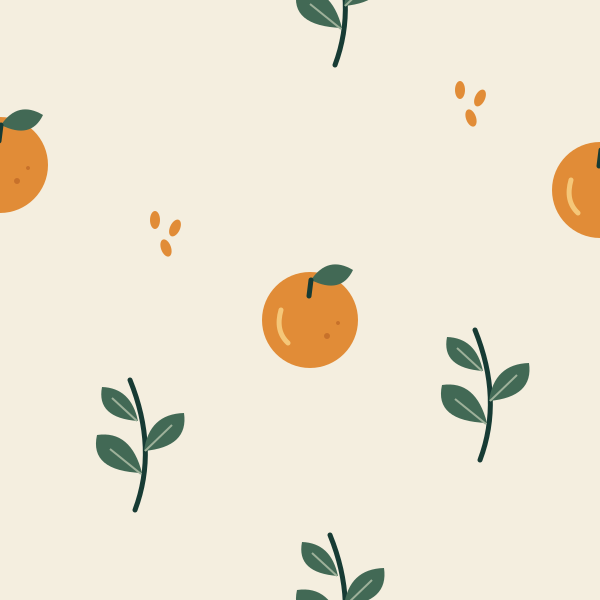
The finished 600 × 600 PNG tile provides a reference. The SVG source is also available for inspection in a vector editor. Import the separate motif PNGs when practicing in Canva so you can move each object independently; uploading the finished tile produces one image object.
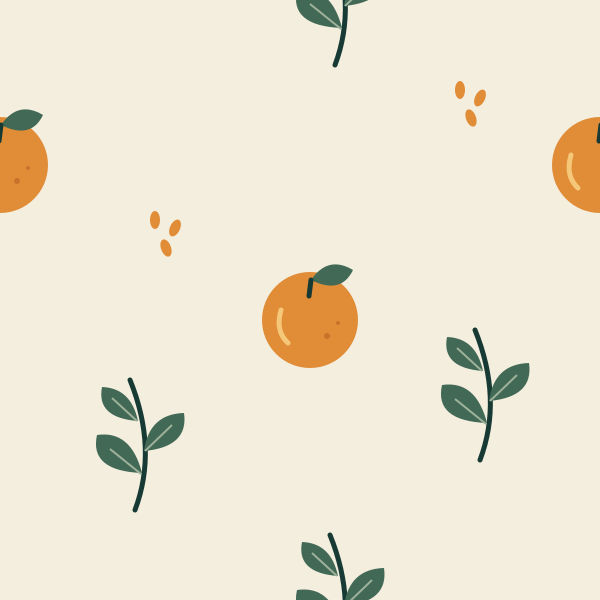
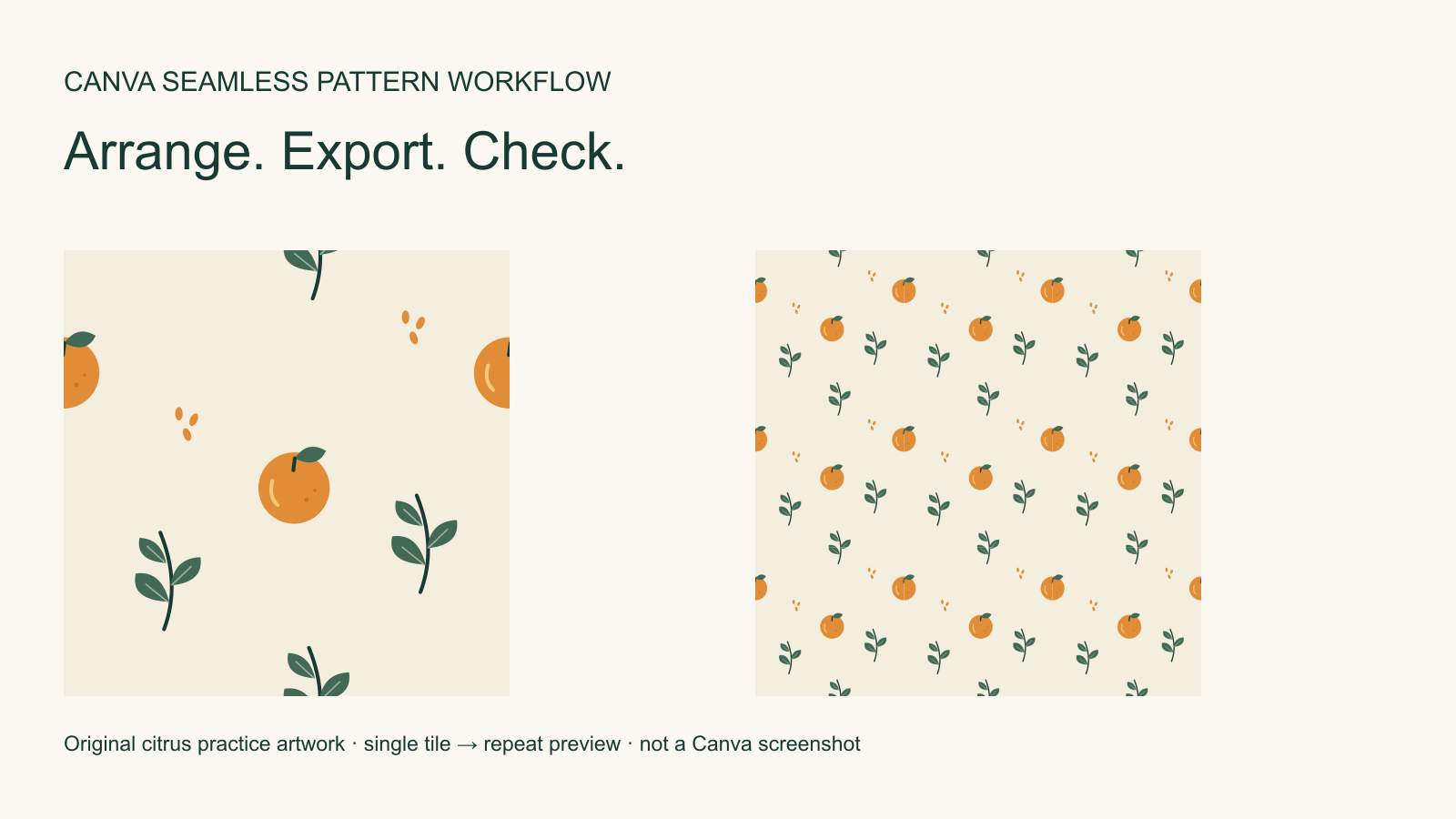
All illustrations are original instructional diagrams using our own artwork and dimensions, not Canva screenshots or a record of a live Canva editing test. The practice tile is intentionally small enough for easy arithmetic. Choose production dimensions from the final product's requirements.
1. Build a tile with separate editable objects
Create a custom-size 600 × 600 px Canva design. Set its background to #F4EEDF. Use Uploads → Upload files to add the three motif PNGs, then click an upload to place it on the page. This upload sequence is documented in Canva's upload help.
Keep the uploaded image's full rectangle, including its transparent margin. Use Position and its numerical size/position controls where available in your editor. The coordinates below refer to the top-left of the image rectangle, measured from the page's top-left. All objects have zero rotation.
| Object | Width × height | X | Y |
|---|---|---|---|
| Orange at left edge | 120 × 120 px | -60 | 100 |
| Its matching right-edge copy | 120 × 120 px | 540 | 100 |
| Leaf at top edge | 120 × 160 px | 280 | -80 |
| Its matching bottom-edge copy | 120 × 160 px | 280 | 520 |
| Interior orange | 120 × 120 px | 250 | 255 |
| Interior leaf, lower left | 120 × 160 px | 80 | 365 |
| Interior leaf, lower right | 120 × 160 px | 425 | 315 |
| Seed cluster, left | 40 × 50 px | 150 | 210 |
| Seed cluster, upper right | 40 × 50 px | 455 | 80 |
If your editor labels or coordinate origin differ, use the matching displacement as the rule. The right orange is exactly 600 px to the right of the left orange. The bottom leaf is exactly 600 px below the top leaf. They are duplicates of the same objects, with the same size and rotation.
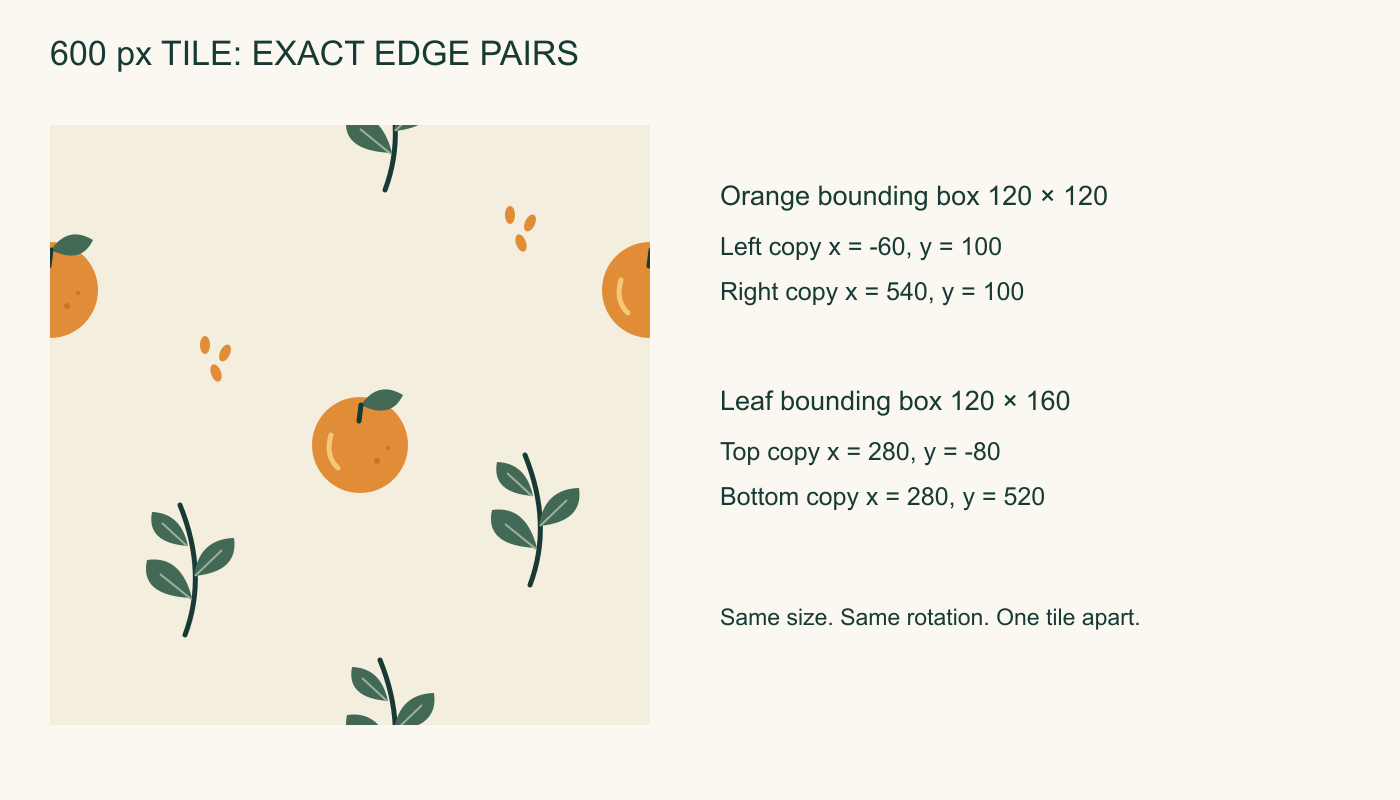
A motif crossing a corner needs four placements. For example, an object beginning at (-30, -20) also needs copies at (570, -20), (-30, 580), and (570, 580). Those copies supply the missing fragments when neighboring tiles meet.
Arrange interior motifs after the pairs are correct. Moving the interior orange is harmless to the edge match. Moving only one of the paired edge oranges breaks it. If you group paired objects, remember that their relationship must survive any later resize or rotation.
2. Download exactly one PNG tile
Name the Canva design something recognizable, such as Citrus tile editable 600. Keep this design in your account and duplicate it before a major revision. You will need its separate objects if a fruit or leaf needs to move later.
Open Share → Download, choose PNG, and select only the tile page when the design contains several pages. Canva's download instructions describe the page selection and available size controls. For this exercise, keep the export at 600 × 600 px and verify the downloaded file's dimensions. Account options can vary; this example uses an opaque background and does not depend on a transparent-background download.
Name the file citrus-tile-v1.png. The file should contain only the square artwork, without a presentation border, page title, guide lines, or an extra white margin. A screenshot of the editor includes interface and scaling artifacts, so use the downloaded image for the following steps.
PNG preserves the flat-color edges in this exercise without JPEG compression. Saving as PNG does not fix an incorrect repeat, and increasing the export size cannot restore detail missing from a small uploaded motif.
3. Check the downloaded image as a straight repeat
Upload citrus-tile-v1.png to the Seamless Pattern Checker and inspect a straight repeat. Start with several copies visible. Zoom in on a join through the orange, then inspect the leaf crossing the horizontal join. Finally, zoom out to see whether the spacing forms an unwanted grid.
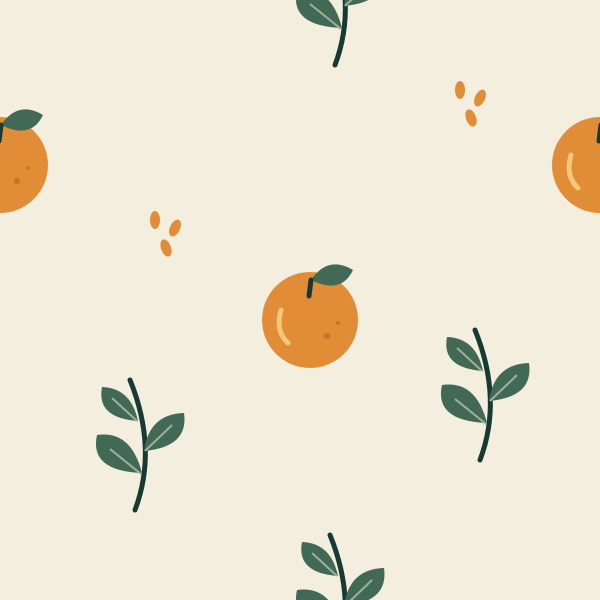
The supplied misaligned practice file moves the right-edge orange down by 25 px. It is deliberately wrong. Compare it with the finished tile to see why a single square can look acceptable while the repeated surface exposes a cut fruit.
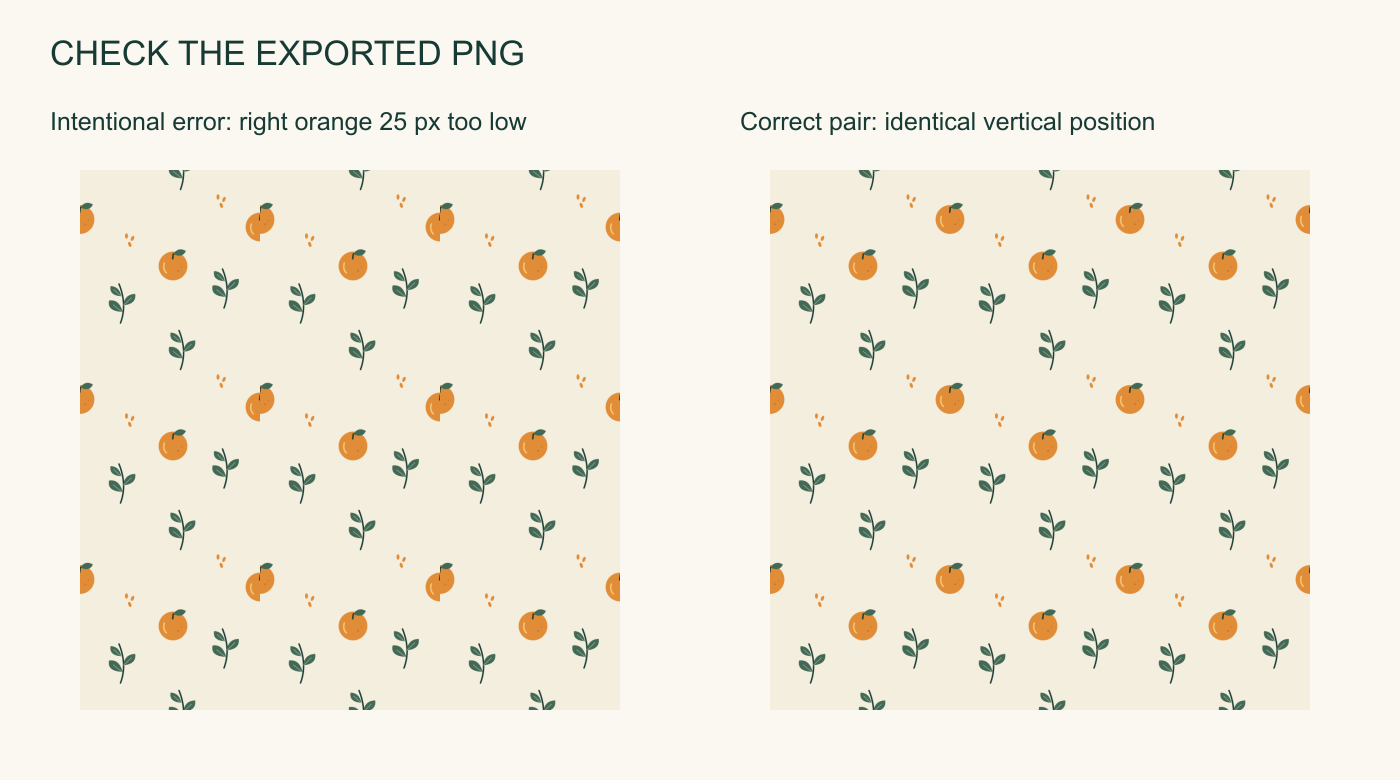
You can also inspect the PNG inside Canva. Create an 1800 × 1800 px checking page, add the exported image at 600 × 600 px, and make nine copies. Their top-left coordinates use X values 0, 600, 1200 and Y values 0, 600, 1200. Keep the tiles unrotated and unstretched. Use this large page for inspection; retain the original single tile for repeating elsewhere.
Check both close and distant views. A broken orange is a geometry problem. A neat row of complete oranges may simply be a composition you dislike. Correct the first by fixing paired positions; correct the second by adjusting the motif arrangement and checking again.
4. Choose the right correction
When you still have editable objects, return to the Canva original. In the deliberate-error example, set both edge oranges to Y = 100, export a new PNG, and repeat the check. This keeps the original shapes intact.
For a flattened image with mismatched painted edges, use the image-to-pattern repair workflow. You can upload a working copy to the pattern converter, repair the relevant edges, and inspect the new repeat. Compare the result against the source because a repair can change nearby detail or introduce a repeated feature.
This second route produces another raster image. It does not recover Canva layers or turn a repaired orange back into a separately editable motif. Keep a filename such as citrus-tile-repaired-v2.png, alongside your editable Canva design and original export.
If an exact logo, illustration outline, or lettering crosses the boundary, use the editable-source correction whenever possible. Such details are easy to damage through a general image repair. For a cleaner source before repair, see the source-image selection guide.
5. Upload the checked tile back into Canva
Use Uploads to add the checked PNG to the Canva design where you want the pattern. Place it as an image at a fixed width and height. Duplicate it in a grid with no gaps. Avoid using a frame that crops each copy differently, and preserve the square aspect ratio.
For a finished patterned background at a particular size, Pattern Filler can assemble the checked tile into a larger raster canvas. It detects the repeat from the tile edges; confirm that its Detected repeat reads Straight for this citrus example. Set the required dimensions, inspect the preview, export the filled image, and upload that result to Canva as one background object. The larger file contains the complete arrangement; it is a different deliverable from the original tile.
Keep headings, labels, and logos on layers above the pattern in your final Canva layout. Text added inside the repeat tile will appear in every copy. If you need a half-drop arrangement, read the half-drop guide before switching layouts, because the edge pairing changes when artwork is staggered.
Set the printed scale before making a large file
Pixel dimensions and print size must agree. A 600 px tile printed at 300 pixels per inch repeats every 2 inches. At 150 pixels per inch, the same pixels occupy 4 inches, with less detail per inch. Merely changing a DPI field adds no pixels.
For a 12 × 8 inch background at 300 pixels per inch, you need 3600 × 2400 px. Our 600 px tile fits six copies across and four down, retaining a 2 inch repeat. A printer asking for a different repeat size needs different placement or adequate source resolution.
Pattern Filler supports PNG, JPG, and baseline RGB TIFF with DPI metadata. Its TIFF export is a raster RGB file; ask the printer about color profiles, CMYK conversion, bleed, and their accepted format. Proof the output at intended size before ordering a large quantity. A seamless screen preview cannot confirm printed color or material behavior.
Troubleshooting common Canva pattern problems
| Symptom | First useful check |
|---|---|
| Orange halves jump at the join | Compare both copies' Y position, size, and rotation |
| Repeated pale lines | Inspect transparent padding, page background, and exact tile spacing |
| Lines appear only at certain zoom levels | Inspect the exported PNG at 100% and in a second viewer before changing artwork |
| Motifs look blurry | Check the original motif pixels and export dimensions |
| A repaired upload cannot be ungrouped | Open the original Canva design to edit its separate objects |
| Pattern looks too regular despite clean joins | Adjust interior spacing and inspect a larger repeat |
Do not overlap tiles arbitrarily to hide a bad join. An overlap changes the spacing and may cover part of the motif. Fix the tile, then place copies at the exact repeat distance.
Questions about seamless patterns in Canva
Can I do this with a free Canva account? The exercise uses your own uploaded PNGs, a solid page background, and a normal PNG download. It avoids premium library assets and transparent-background export. Check the options shown in your account if you use other assets or features.
Can I upload a finished seamless tile instead of building one? Yes. Use the reference tile here to practice checking and placement. You will have a single image object, so retain a separate editable source if you need to rearrange its internal motifs.
Does a good Canva page preview prove the PNG is seamless? Check the downloaded PNG itself. Export size, unwanted margins, and later placement can introduce problems that were not visible while arranging the original objects.